If A2D2 does not return after an update, check its connection before resetting or reinstalling software.
Overview
Check → Contact support
Check before changing anything
If installation may still be running, leave A2D2 powered on. Check the app’s update status. Once the update has finished, confirm your phone is on the home network and refresh the device list. If possible, check whether the router lists A2D2 at a new IP address.
When to contact support
If A2D2 remains unavailable, tell support its last known software version, how you started the update, the exact error and what the lights are doing. Say whether it appears in the router or advertises a setup network. Do not reflash it or repeatedly reset it as a first step.
Restart, factory reset or recovery?
A restart starts the current software again. A factory reset clears saved settings so you can repeat setup. Supported firmware also has a separate function to start from a backup software partition. These are different operations; a long button hold is not just a more thorough restart.
Support-led recovery
Ask support to confirm the correct recovery method for your firmware before using the button recovery function. Do not interrupt an update, guess button-hold timings or install an image intended for another device. Follow the supplied instructions and check the software version afterwards.
Try the wired update route
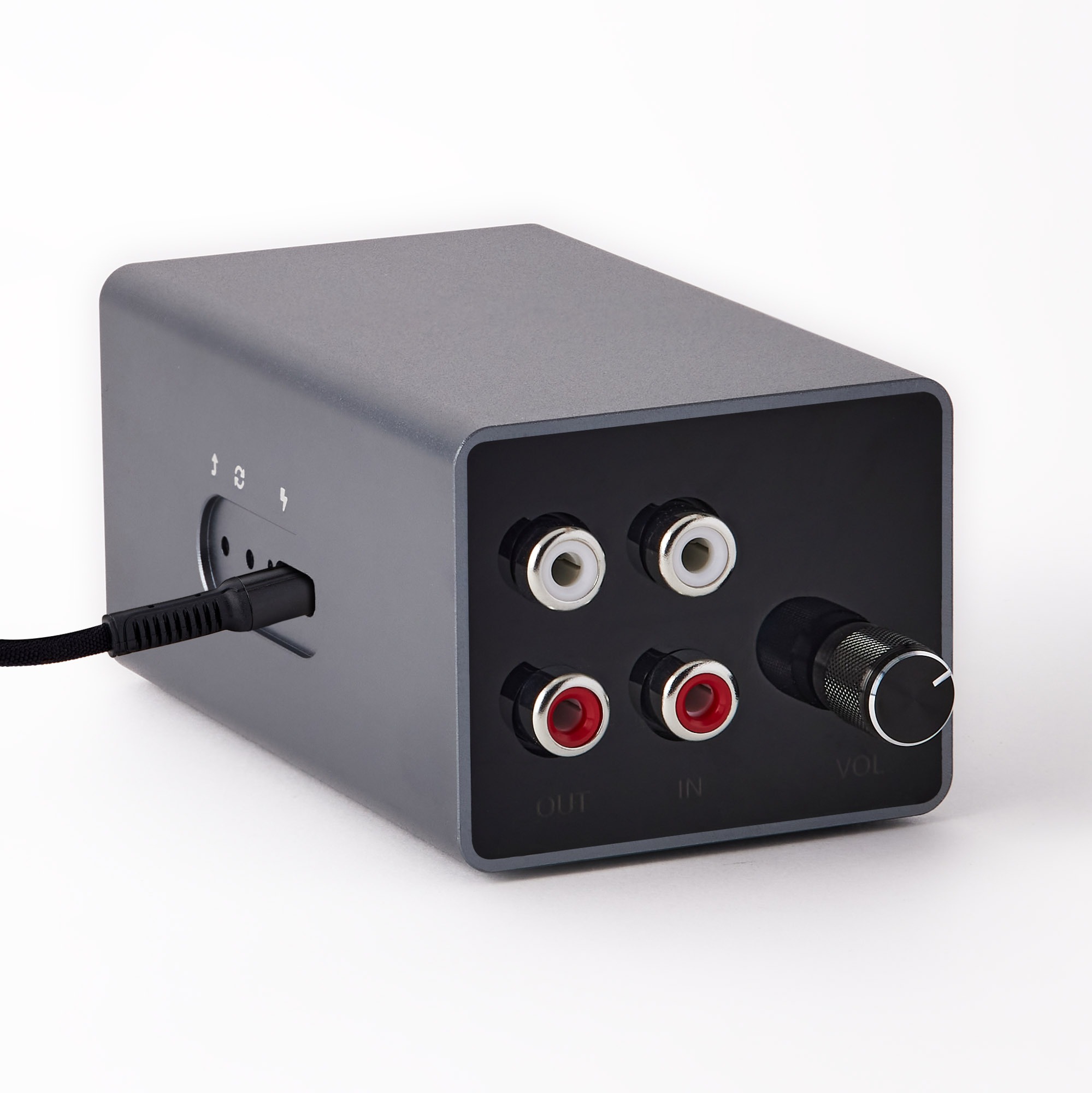
Once you know installation is no longer running, check with a stable 5 V wall supply rated for 2 A or more and a known-good cable. Connect Ethernet to the main router; audio cables are not needed. If the update page opens, use the wired update instructions. If the unit cannot start or the page stays unavailable, contact support before attempting the backup-start button sequence.
Was this article helpful?
That’s Great!
Thank you for your feedback
Sorry! We couldn't be helpful
Thank you for your feedback
Feedback sent
We appreciate your effort and will try to fix the article