Discovery and a working connection are different. A saved name or IP address does not always mean A2D2 can be reached now.
Overview
A2D2 → Home network → Phone
First checks
- Make sure A2D2 is powered on and has finished starting. Do not interrupt an update.
- Connect your phone to the home network used by A2D2. It can be on a different Wi-Fi band; A2D2 itself uses 2.4 GHz or Ethernet.
- Allow A2D2’s local-network and nearby-device permissions where requested. If a VPN is active, test briefly without it, then restore your preferred setting.
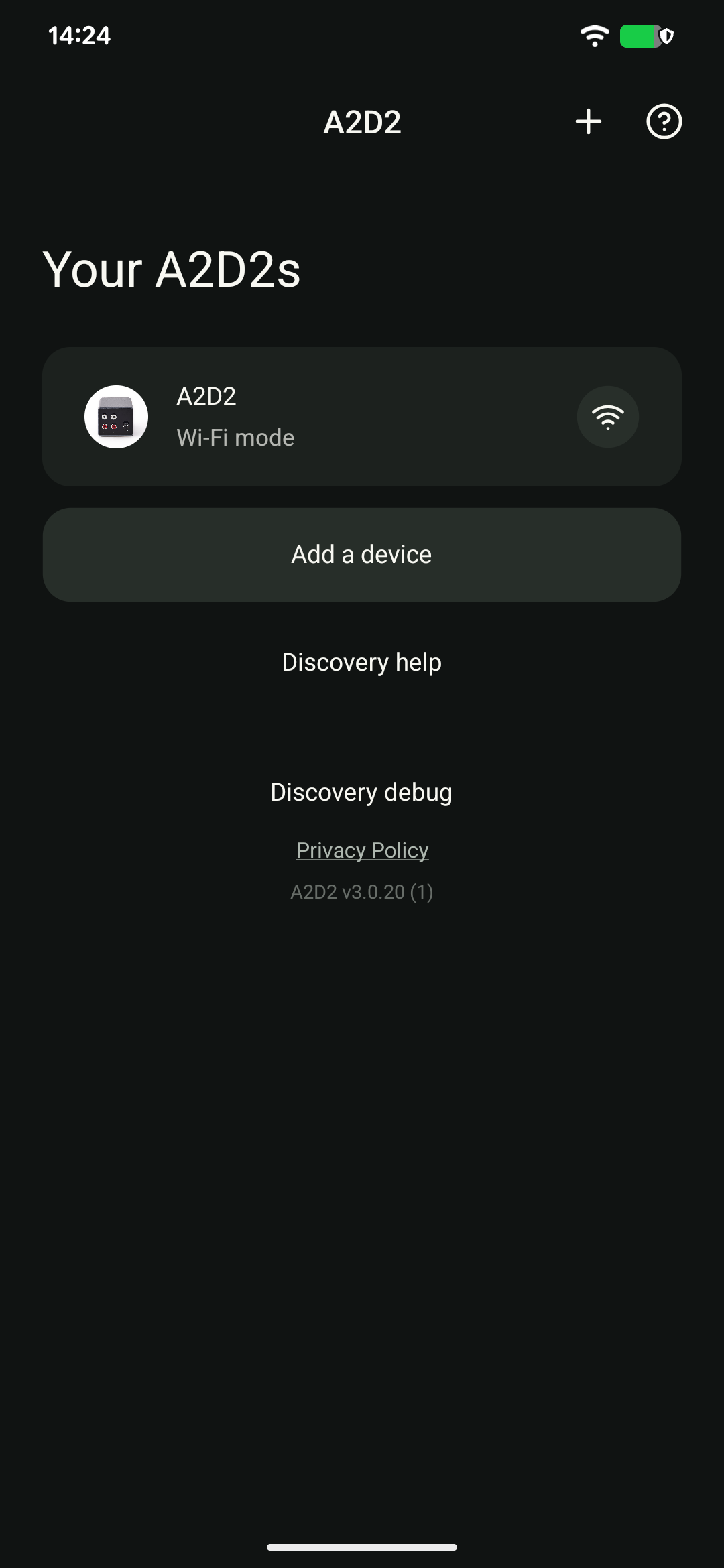
- Return to Devices and refresh. Check the router’s client list for A2D2’s current address rather than relying on an old IP.
A new or reset device is missing
Turn on Bluetooth, keep your phone nearby and use the app’s setup flow. An A2D2 setup Wi-Fi network can exist even if Bluetooth discovery has not succeeded. Follow the app’s setup-Wi-Fi fallback if offered.
The device appears but will not open
Check for guest-network or client-isolation settings. A device can advertise its name while direct connections to it are blocked. Tell support that discovery succeeds but the device screen does not open.
What about a2d2.local?
Local-name lookup depends on your network and operating system. Renaming A2D2 also changes the hostname you should use. The app does not require you to type a2d2.local, and failure to resolve that name alone does not prove the device is offline.
Still stuck? Contact support with your phone model, app version, A2D2 software version, router or speaker model, and the exact message you see. Never send your Wi-Fi password.
Missing after a restart
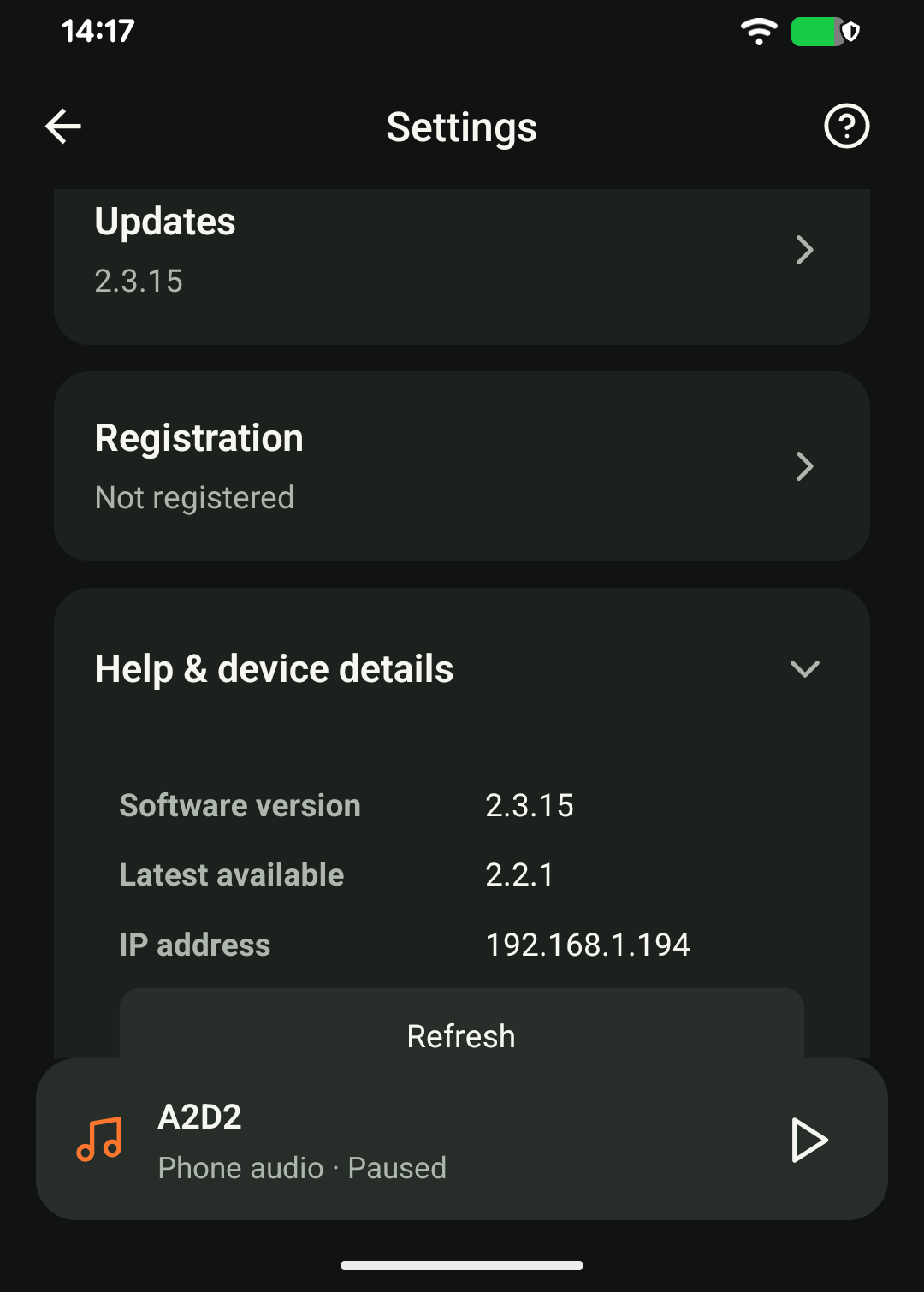
Check the current address in the router instead of using an old bookmark. Firmware fixes preserve the network identity, but the router still decides the IP address. A stable MAC does not guarantee the same IP. If the app discovers A2D2 but cannot open it, report that distinction; changing the name or repeatedly resetting is not the first step.
Check the phone and restart the network
Security apps such as Norton, McAfee, Avast, AVG, Bitdefender, Malwarebytes or Kaspersky may include a VPN or local-network filter. If installed, check that feature and allow local access or pause it briefly to test, then restore it. Being installed does not by itself mean the app is causing the problem.
Confirm the phone stays on home Wi-Fi. Briefly turn mobile data off to test; on iPhone, also check Wi-Fi Assist if the phone keeps switching away. Restore your usual setting afterwards.
If the connection is still stale, restart the router and mesh nodes, wait until the network is ready, then restart A2D2 and reopen the app. As a last app check, reinstall A2D2: the unit keeps its network settings, but local app preferences may be cleared.
Was this article helpful?
That’s Great!
Thank you for your feedback
Sorry! We couldn't be helpful
Thank you for your feedback
Feedback sent
We appreciate your effort and will try to fix the article