Use Settings to recognise your device, choose the app’s appearance and adjust supported options.
Overview
A2D2 → Home network → Phone
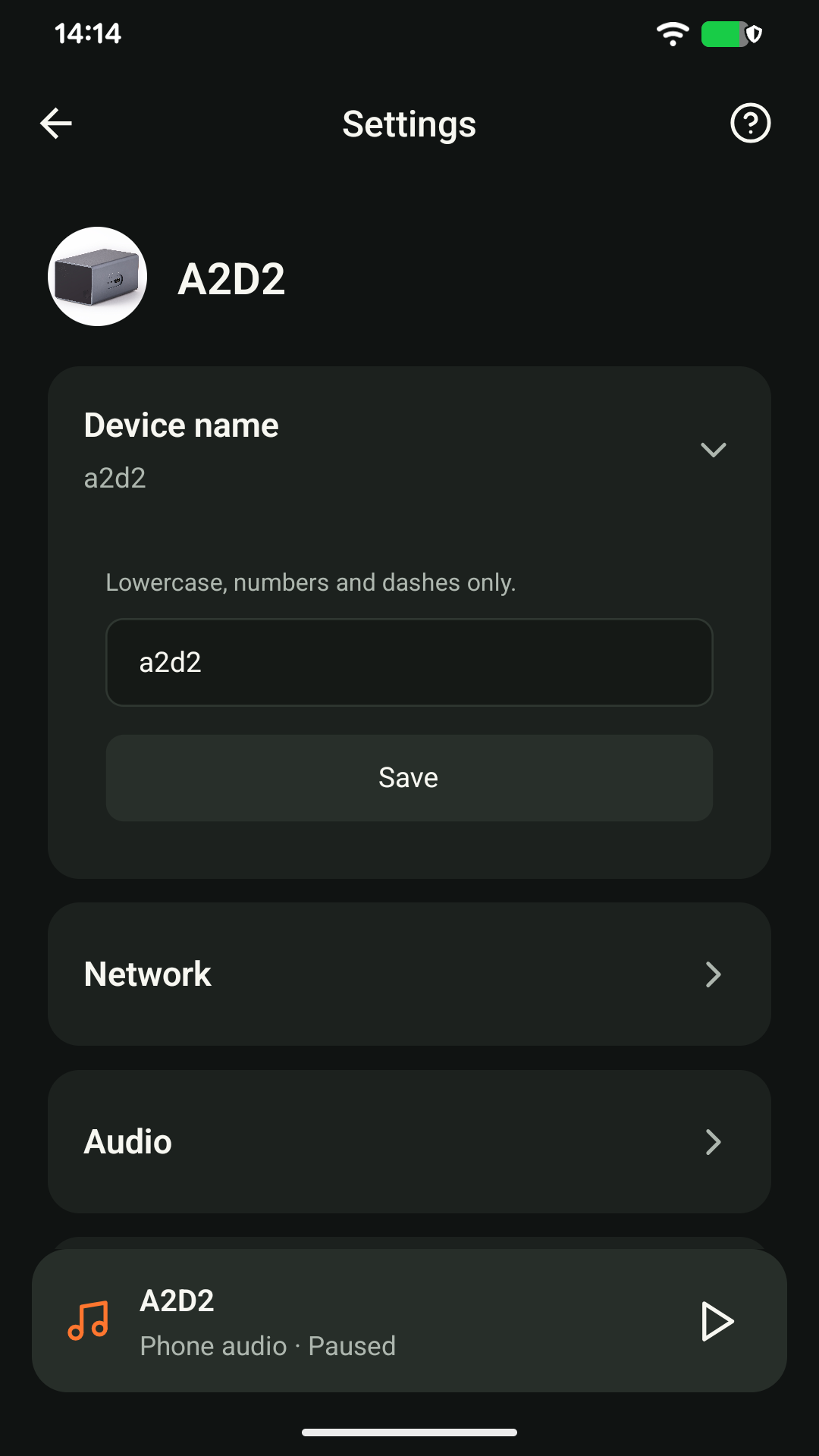
Device name
Open Settings → Device name, enter a name using lowercase letters, numbers and dashes, then tap Save. For example, living-room. A saved custom name is used in the app; the default display name is A2D2.
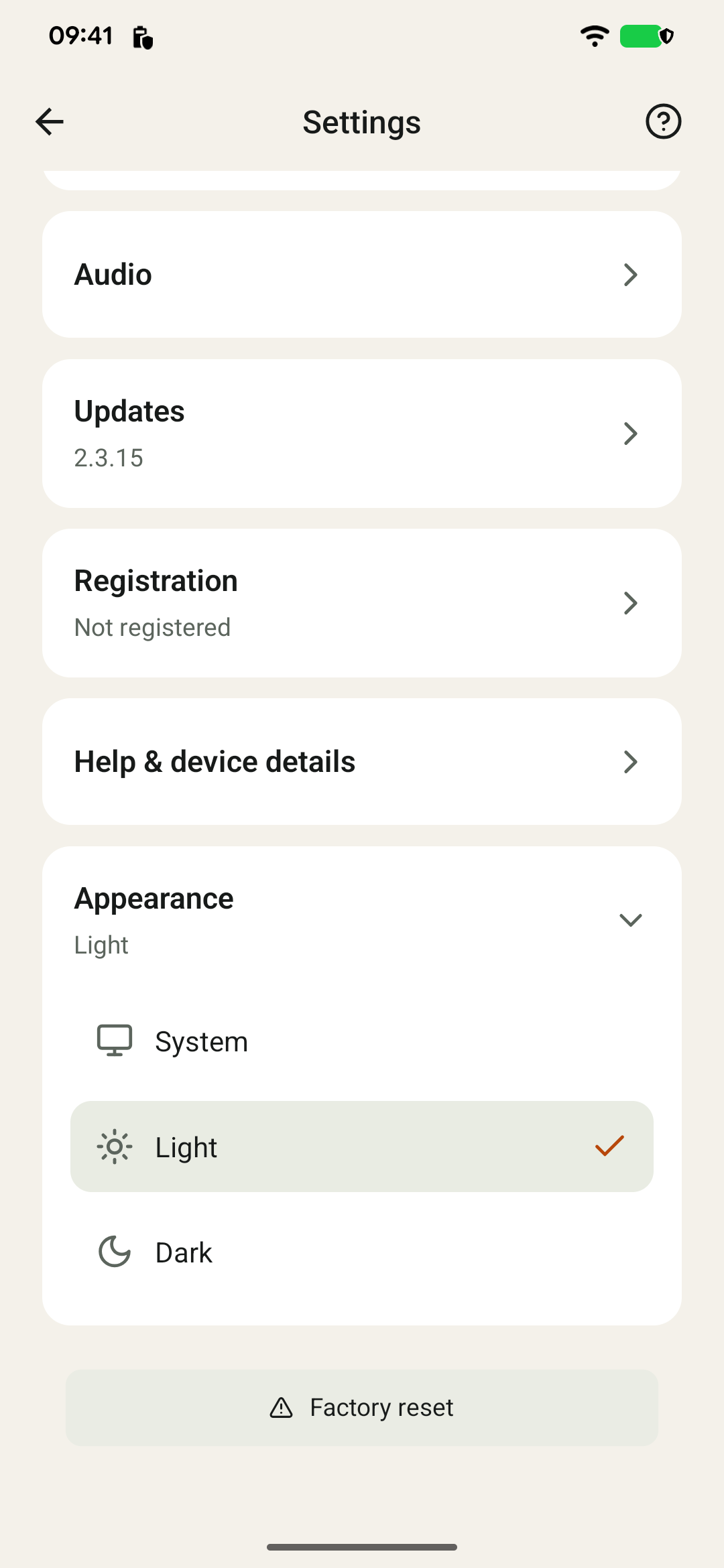
Appearance
Choose System, Light or Dark under Appearance.
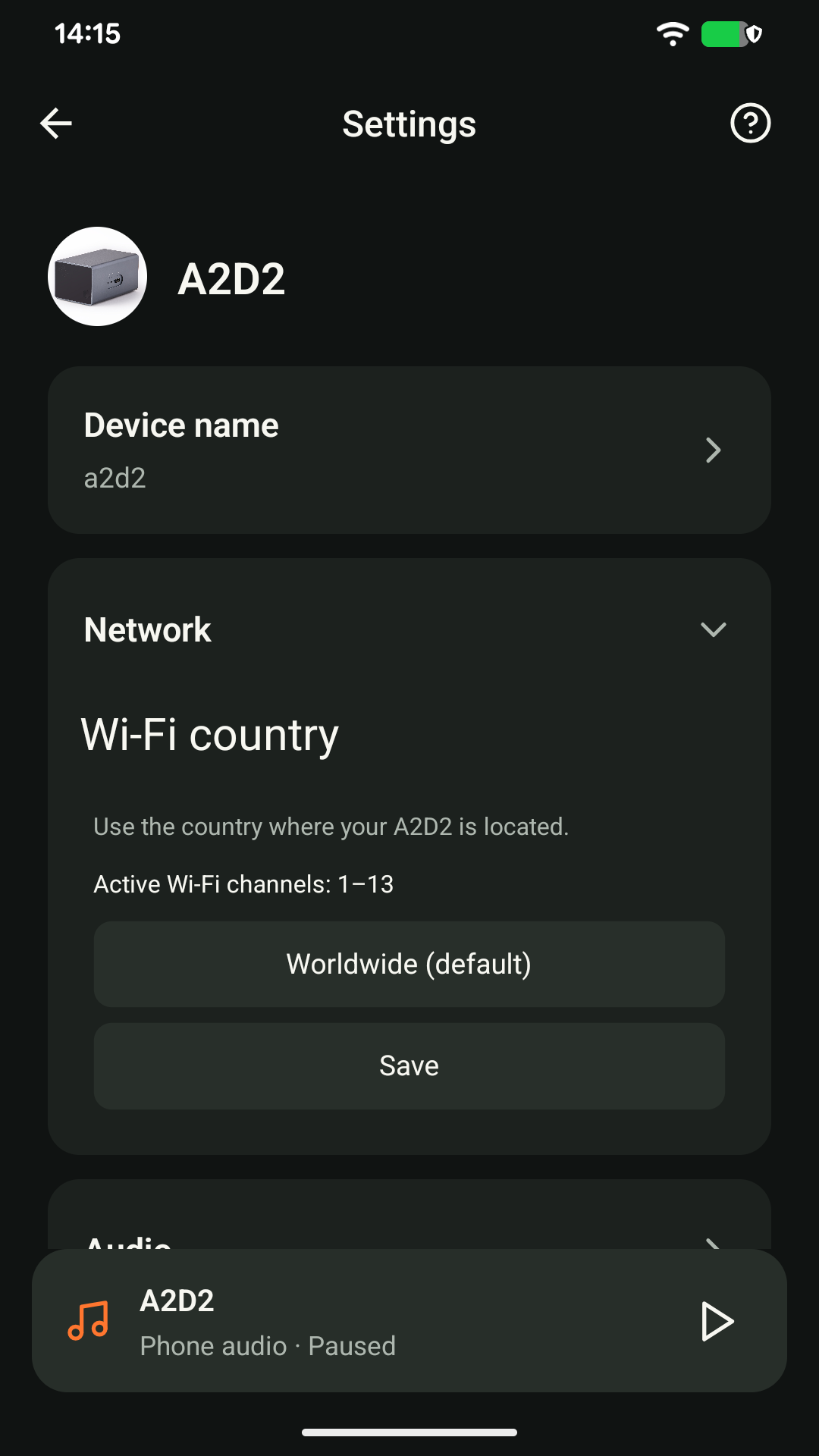
Wi-Fi country
On supported firmware, choose the country where A2D2 is physically located. Save it, then follow the app’s restart instruction when you are ready to stop playback. The app shows the active Wi-Fi channels.
Do not choose a different country to unlock channels or increase range. If the setting is unavailable, check for a firmware update.
Device details
The software version and IP address help support identify your device and investigate connection issues. Check the current address rather than using one saved months ago.
Your Wi-Fi network is not listed
Check that the router offers 2.4 GHz Wi-Fi. If A2D2 is reachable in the app, open Wi-Fi country, choose the country where the device is located and save. Follow any restart instruction, then check the active channels shown. Choosing a country does not connect A2D2 to a new network. If setup cannot reach your router at all, this setting is not a prerequisite you can complete through that missing connection: contact support with the router’s channel and country. If available, Ethernet provides another way to reach the device. Do not choose an incorrect country to unlock channels.
Was this article helpful?
That’s Great!
Thank you for your feedback
Sorry! We couldn't be helpful
Thank you for your feedback
Feedback sent
We appreciate your effort and will try to fix the article