Connect your music source, join your network, then choose where to listen.
Overview
Power → Wi-Fi → Play
Before you start
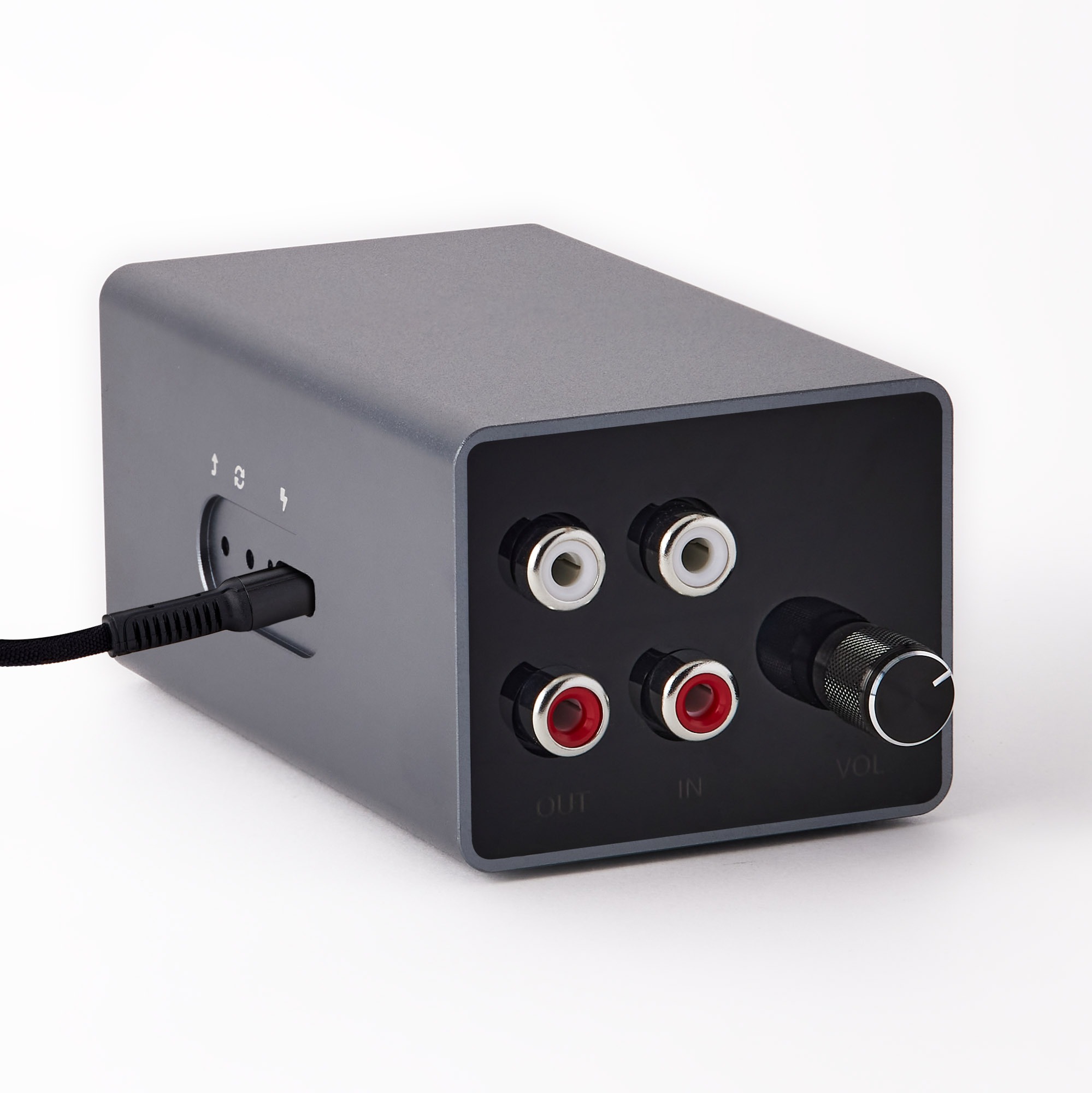
- A2D2 Stream, its USB power cable and a suitable 5 V power supply rated for at least 1.5 A.
- A line-level audio source and a stereo RCA cable. A turntable without a built-in phono preamp needs a separate preamp.
- The A2D2 app for iPhone or iPad or Android.
- A 2.4 GHz Wi-Fi network and its password, or an Ethernet cable to your router.
1. Connect your music
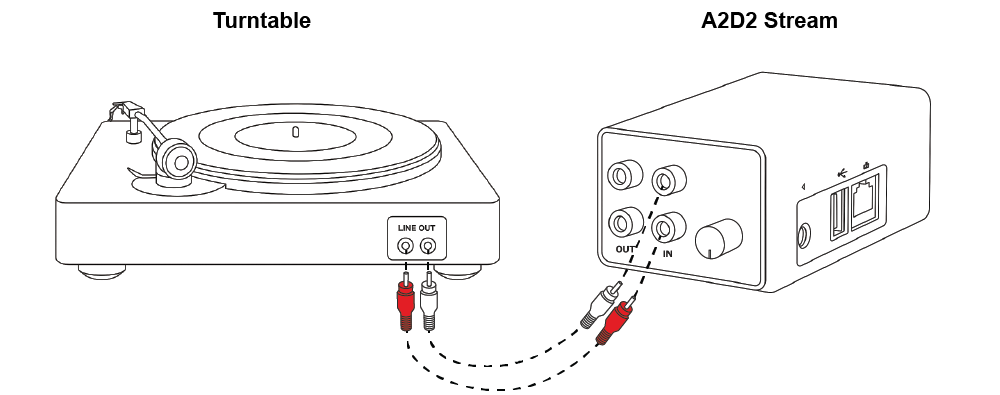
Connect the source’s line output to A2D2’s IN sockets. Connect USB power and allow A2D2 to start.
To keep using an amplifier, connect A2D2’s OUT sockets to an AUX or LINE input. Do not use an amplifier’s PHONO input for this line-level signal.
Never connect an amplifier’s speaker outputs to A2D2. See supported audio sources for connection examples.
2. Open the app
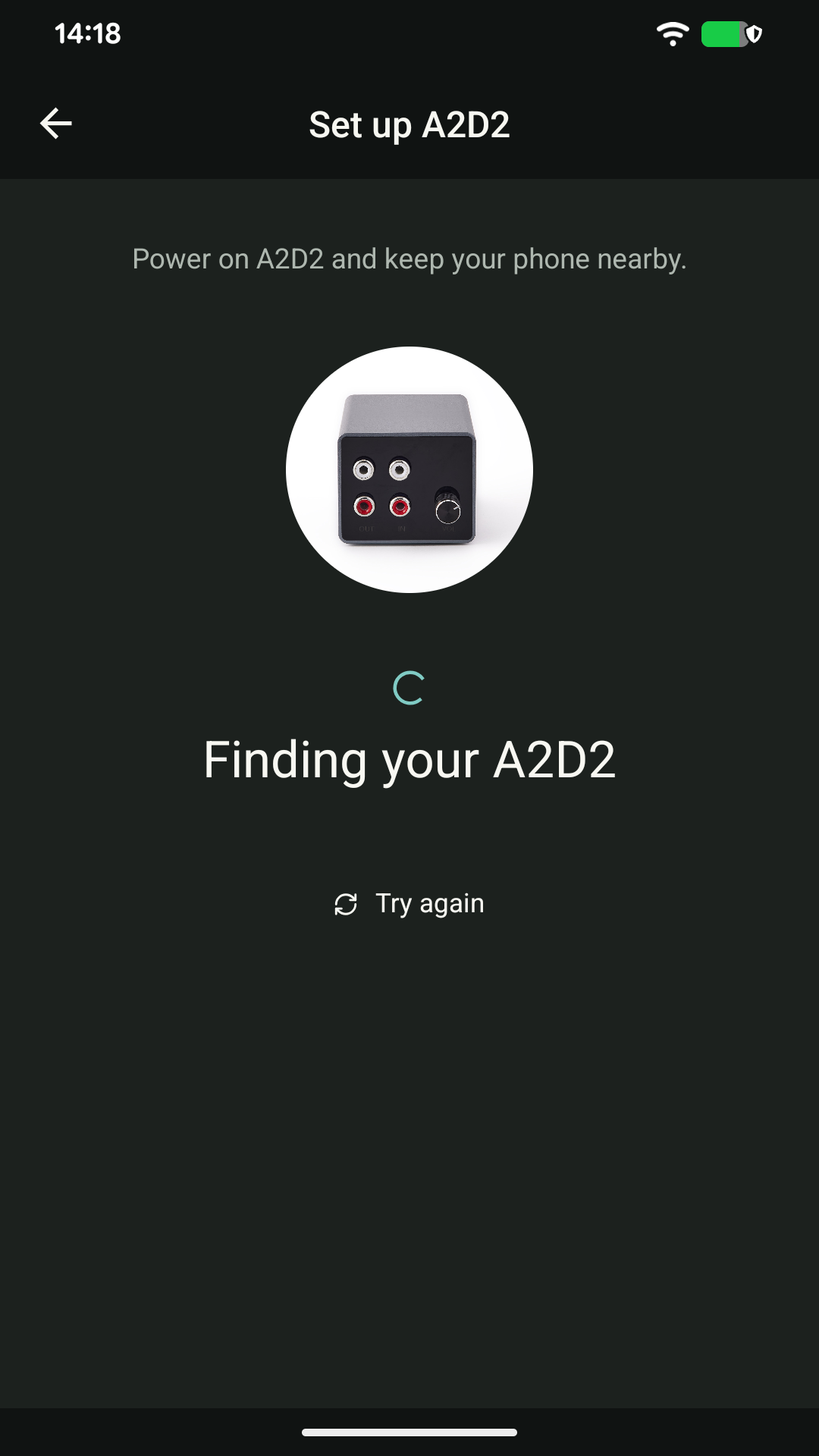
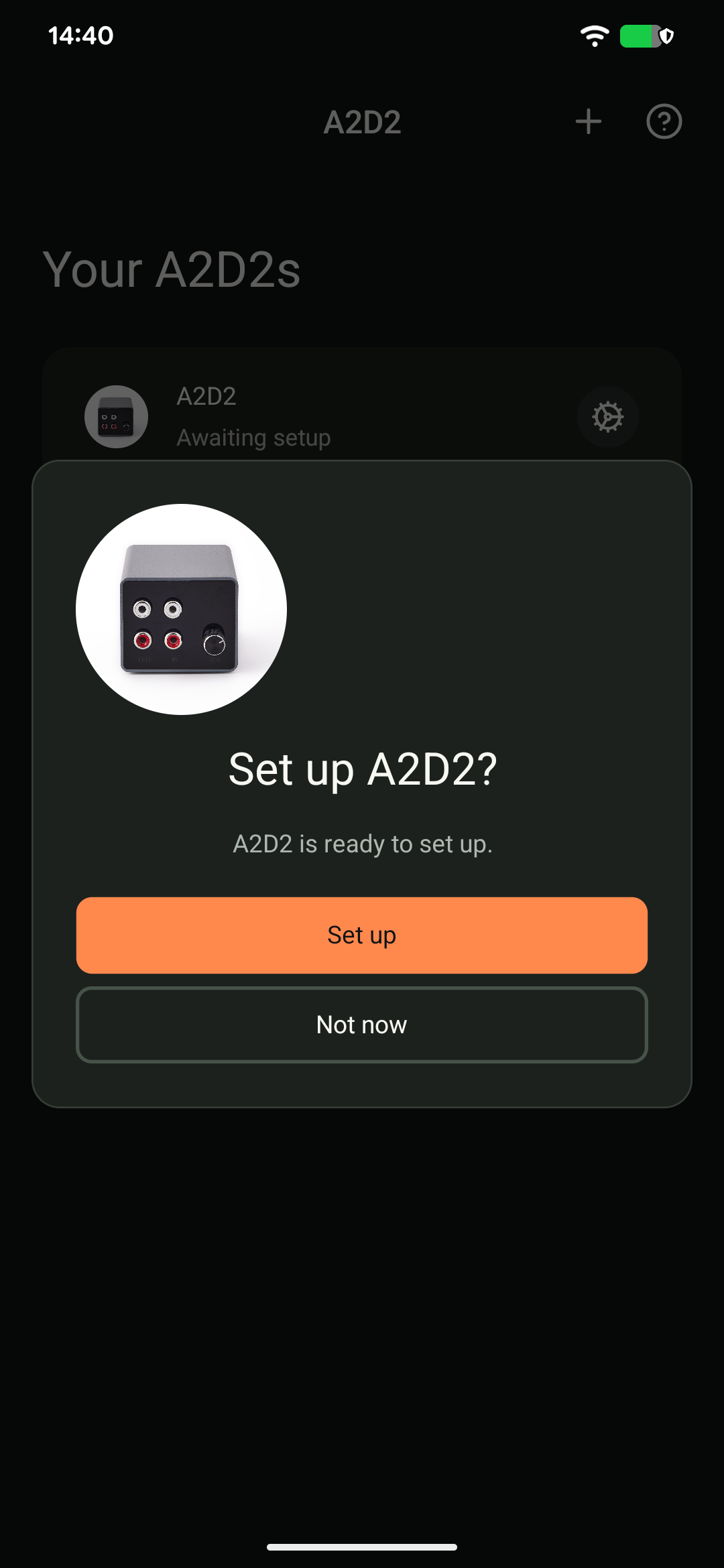
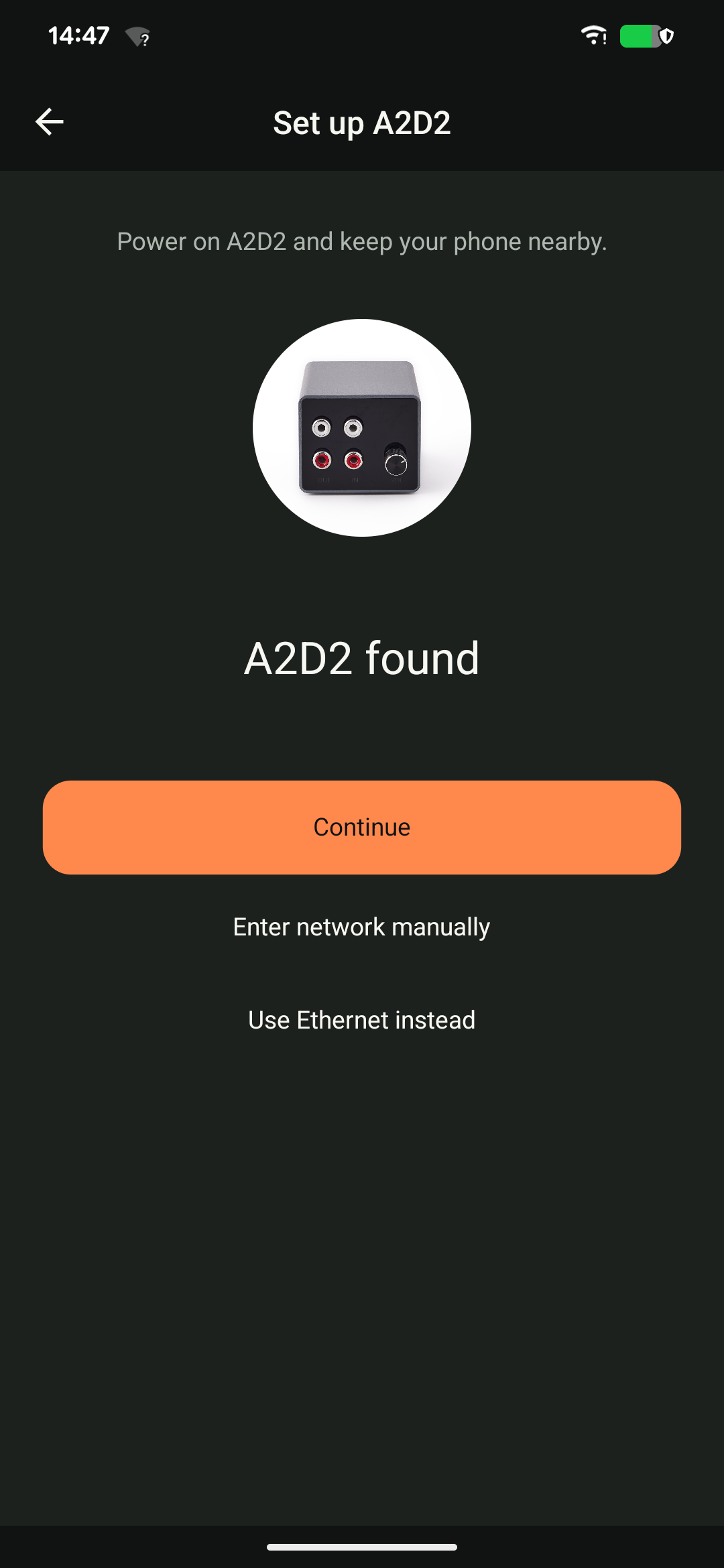
Keep your phone close to A2D2, turn on Bluetooth and allow the discovery permissions requested by the app. When the setup prompt appears, continue with the found device. You do not need to pair A2D2 in your phone’s Bluetooth settings.
3. Join your network
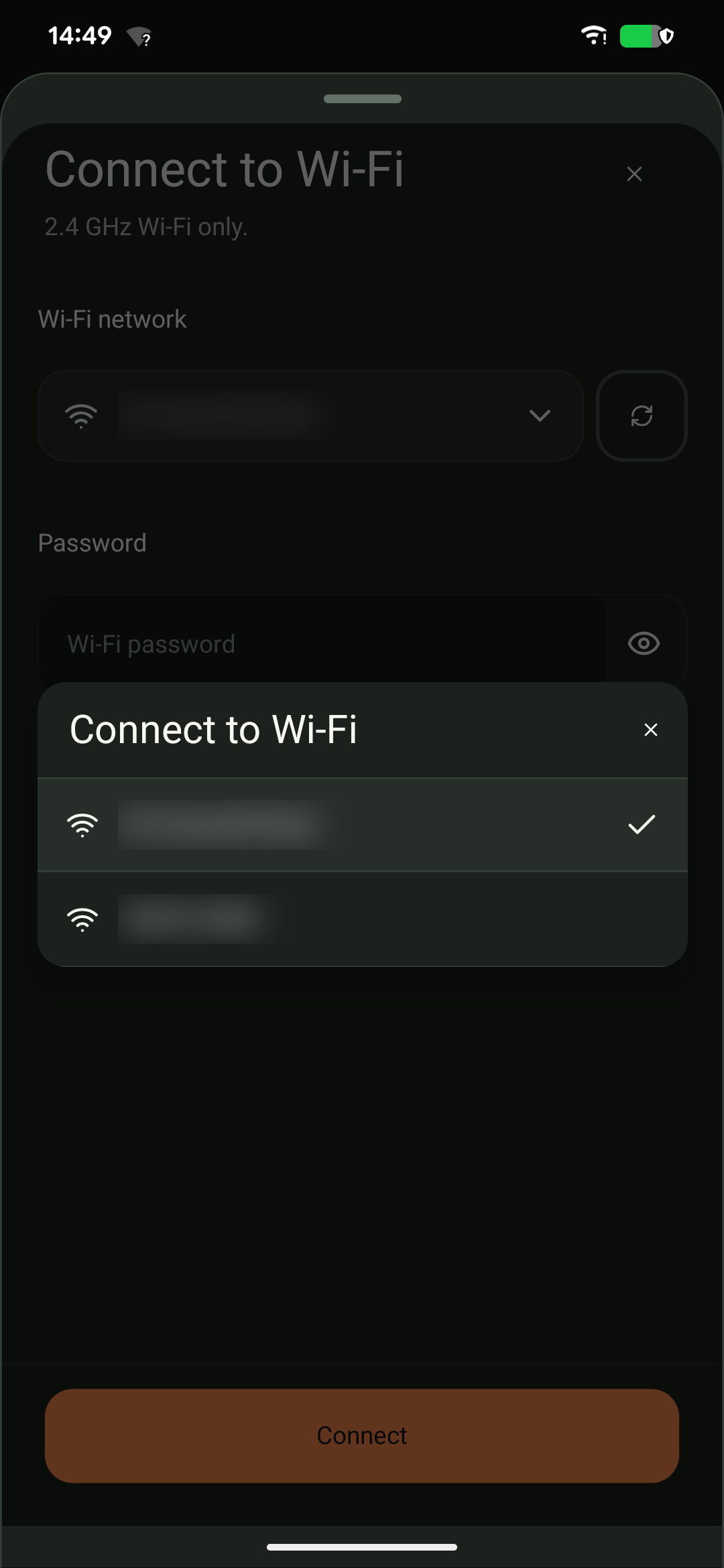
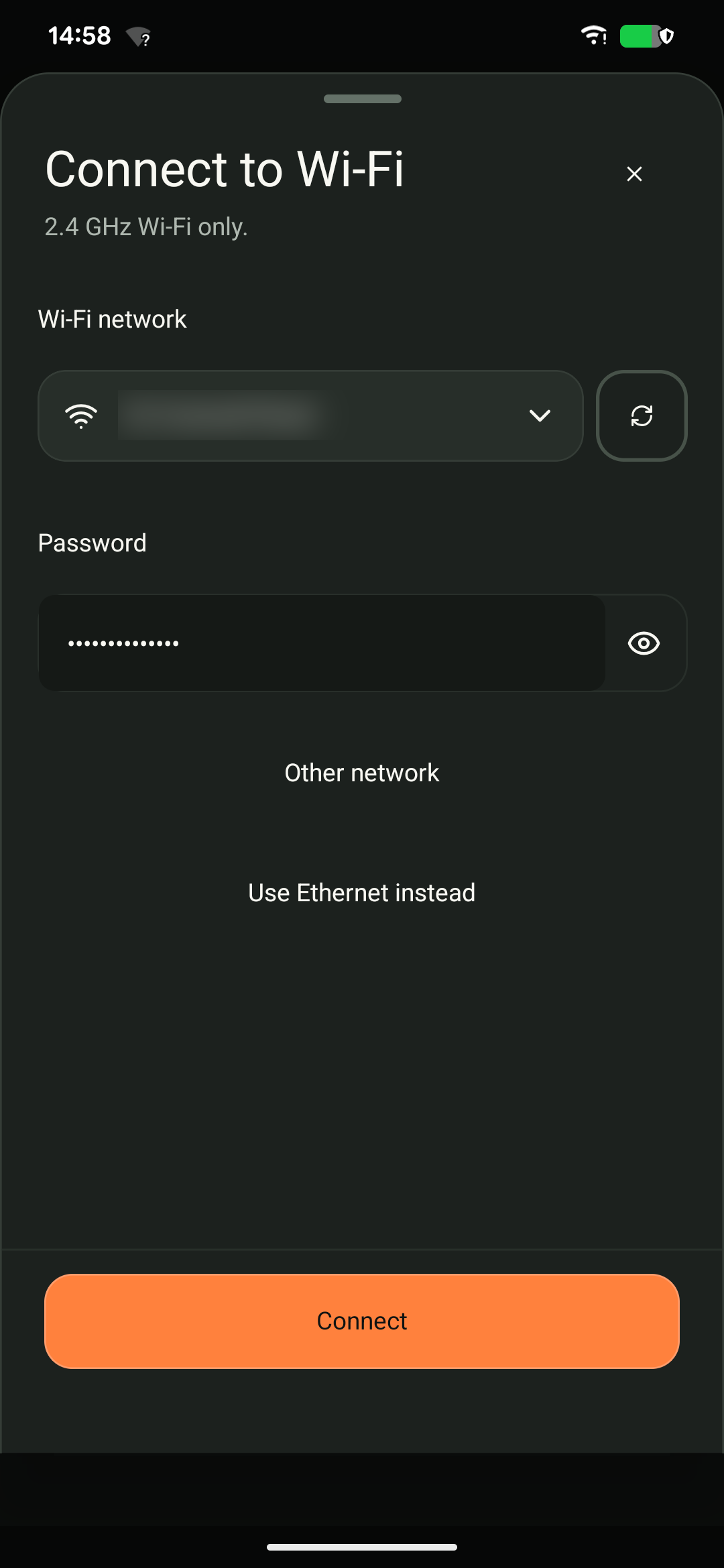
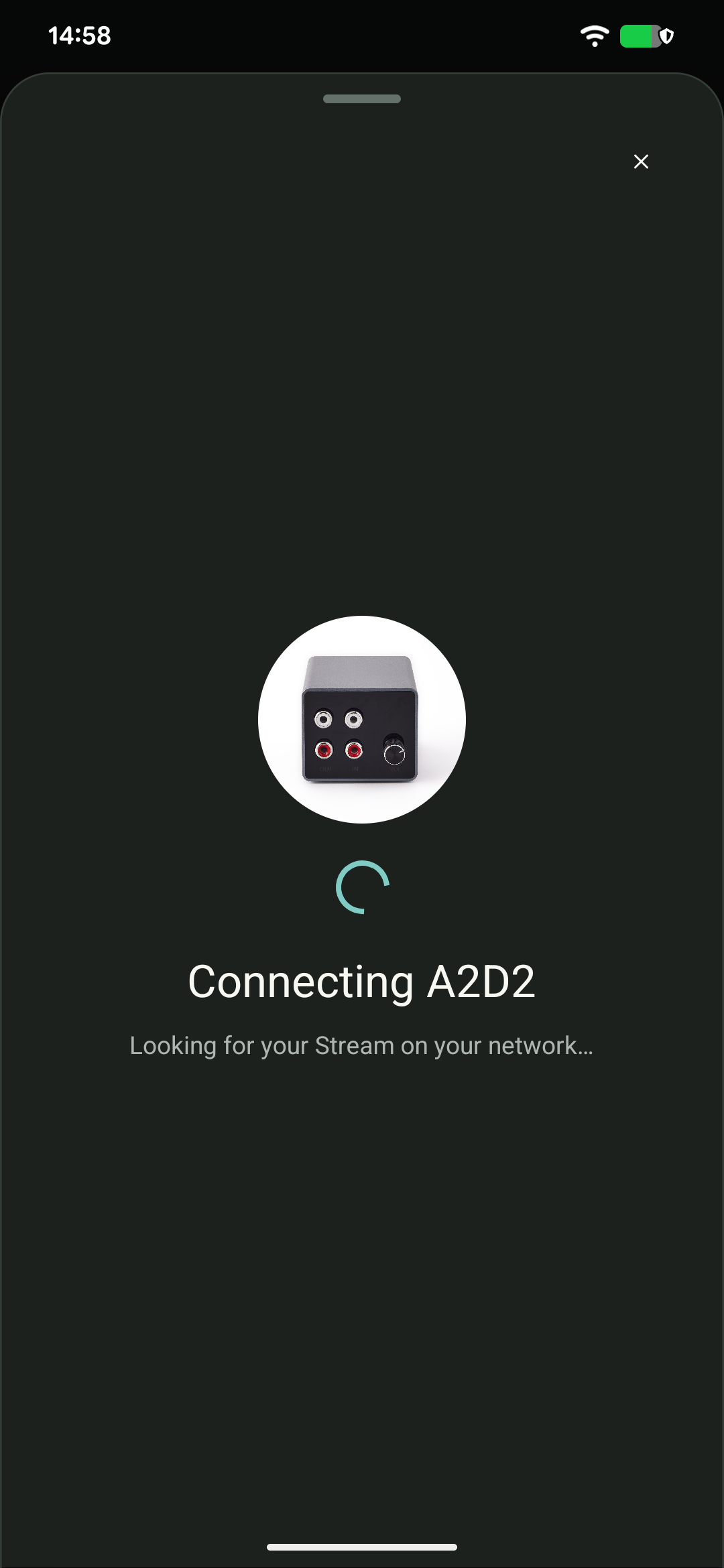
Wi-Fi: choose your home network, enter its password and tap Connect. If asked to join an A2D2 setup network, allow it and return to the app. Keep the app open while setup finishes, and reconnect your phone to your home network if needed.
Ethernet: connect A2D2 to your router, then choose Use Ethernet instead if the setup screen offers it. Keep your phone on the same home network.
A2D2 uses 2.4 GHz Wi-Fi. Your phone can use 5 GHz on the same local network; you do not normally need to split a combined Wi-Fi name into separate bands.
4. Play something
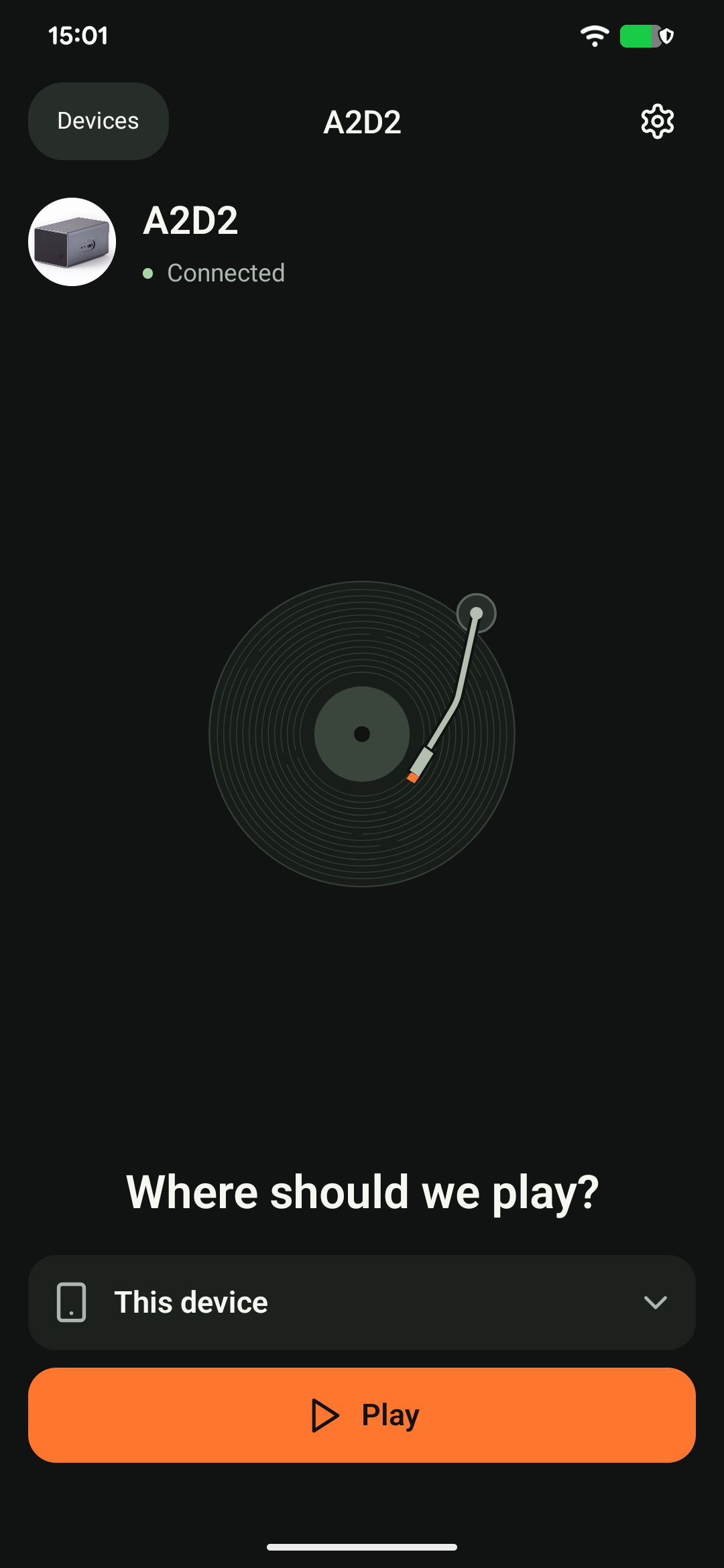
Start your turntable or other source. Once A2D2 appears, open it if needed, tap Play to, and choose your phone or speakers. Choose where to play explains each option.
If an update is required during setup, follow the app’s instructions and keep A2D2 powered on. Normal Wi-Fi setup does not require repeated manual restarts.
Still stuck? Contact support with your phone model, app version, A2D2 software version, router or speaker model, and the exact message you see. Never send your Wi-Fi password.
Was this article helpful?
That’s Great!
Thank you for your feedback
Sorry! We couldn't be helpful
Thank you for your feedback
Feedback sent
We appreciate your effort and will try to fix the article