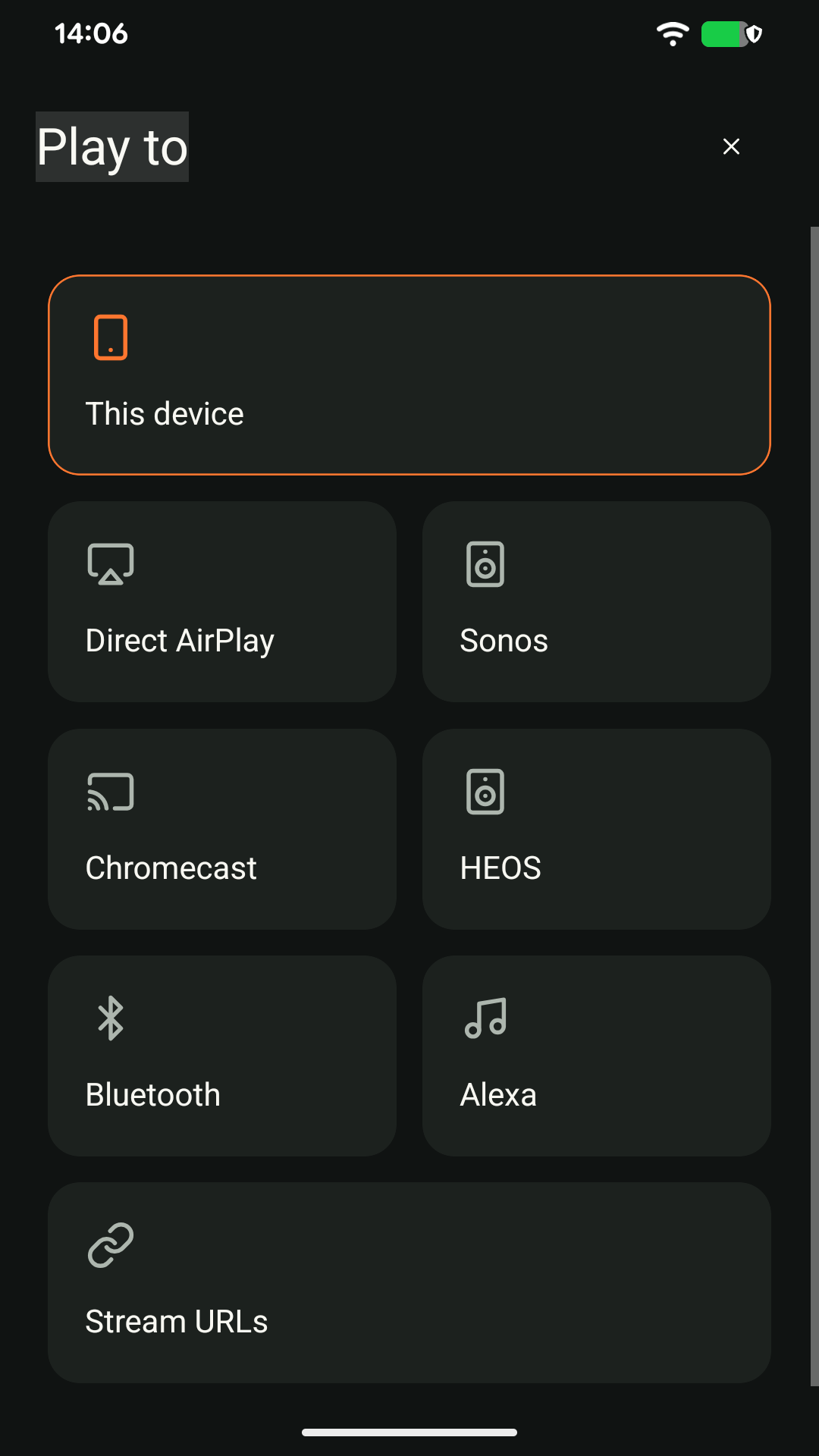
Start your music source, open A2D2 in the app, then tap Play to.
Overview
Audio source → A2D2 → Phone → Speaker
| Option | Use it for |
|---|---|
| This device | Listen through your phone or its connected headphones. |
| This device / AirPlay — iOS | Listen on the iPhone or iPad, or send audio through it to one or more AirPlay 2 speakers. |
| Direct AirPlay | A2D2 streams to one AirPlay receiver. Works with the Android and iOS apps. |
| Sonos, Chromecast or HEOS | Choose a speaker or a supported group on your home network. |
| Bluetooth | A2D2 streams directly to paired Bluetooth headphones or a speaker. |
| Alexa | Use the A2D2 Alexa skill and the device code shown in the app. |
| Stream URLs | Copy an audio-stream address for a compatible player on your network. |
Use the playback and volume controls for your chosen output. Allow a short time for wireless speakers to buffer the audio before tapping Play again.
More than one A2D2?
Tap Devices to choose another unit. Give each one a recognisable name in Settings.
Can I keep using my phone?
Yes. For phone listening and iOS AirPlay 2, keep the app running in the background and the phone connected to your home network. Other audio apps and calls may interrupt playback.
With Direct AirPlay, the audio travels from A2D2 to the receiver, not through your phone. Choosing different speaker ecosystems does not create a synchronised group across them.
Only the phone player is visible
Open Play to to choose another output. The current design uses an output picker, not a permanently visible row of speaker icons. If Play to itself is missing or fails to open, update the app and send support a screenshot and app version. Reinstalling is not the first step and can clear local app preferences.
Was this article helpful?
That’s Great!
Thank you for your feedback
Sorry! We couldn't be helpful
Thank you for your feedback
Feedback sent
We appreciate your effort and will try to fix the article