Use Direct AirPlay for one receiver, or an iPhone or iPad for AirPlay 2 multi-room playback.
Overview
Direct AirPlay
Audio source → A2D2 → One receiver
The phone controls playback; it does not carry the audio.
AirPlay 2 • iOS
Audio source → A2D2 → iPhone / iPad → Several compatible speakers
The iPhone or iPad carries the audio and must stay connected.
Direct AirPlay — Android and iOS
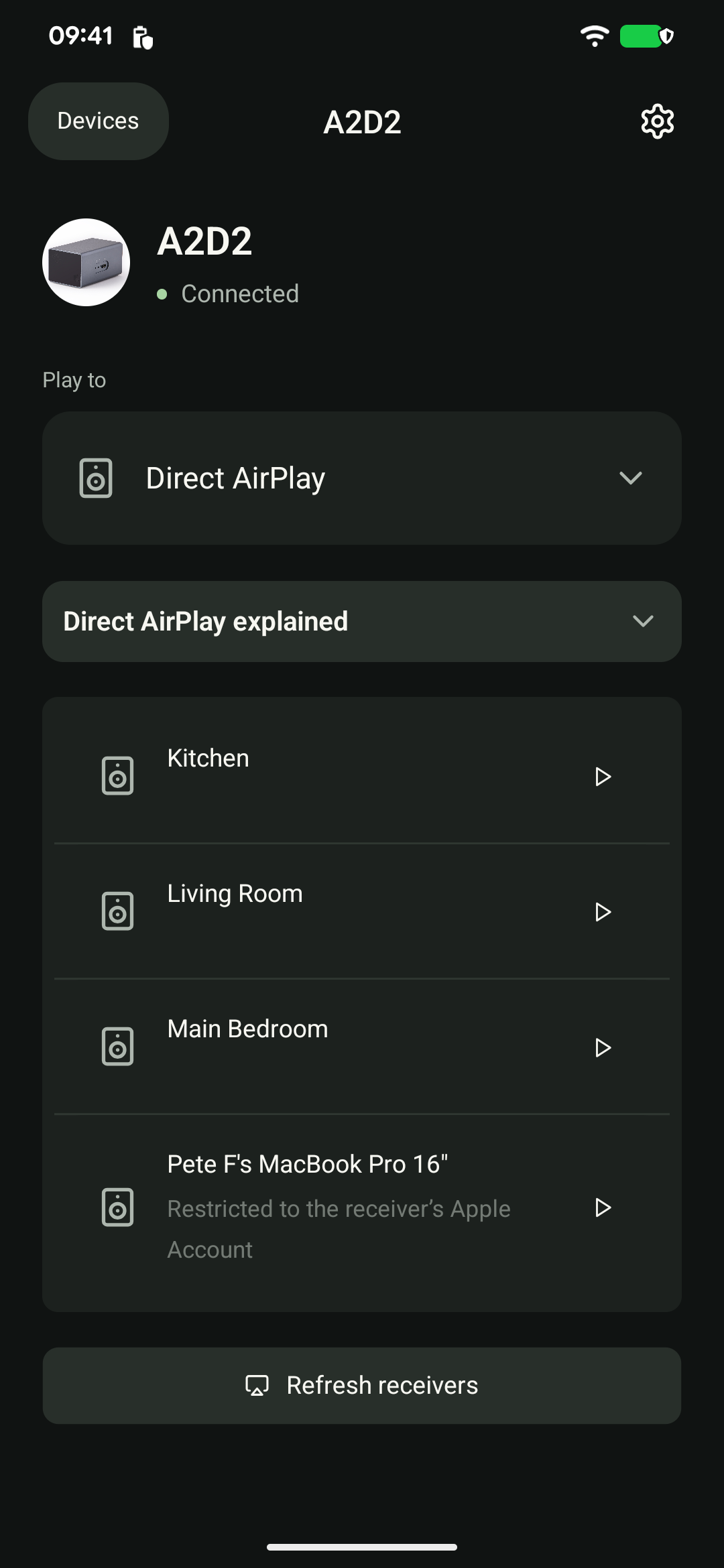
- Start your music source and open A2D2 in the app.
- Tap Play to → Direct AirPlay.
- Tap Play beside your receiver. Enter its on-screen PIN or AirPlay password if prompted.
- Adjust the receiver volume in the app.
A2D2 sends audio straight to that receiver. Your phone controls playback but does not carry the audio, so it can leave the network without stopping this stream.
Direct AirPlay does not provide synchronised playback across multiple receivers. If a receiver is missing, tap Refresh receivers.
AirPlay 2 multi-room — iPhone and iPad
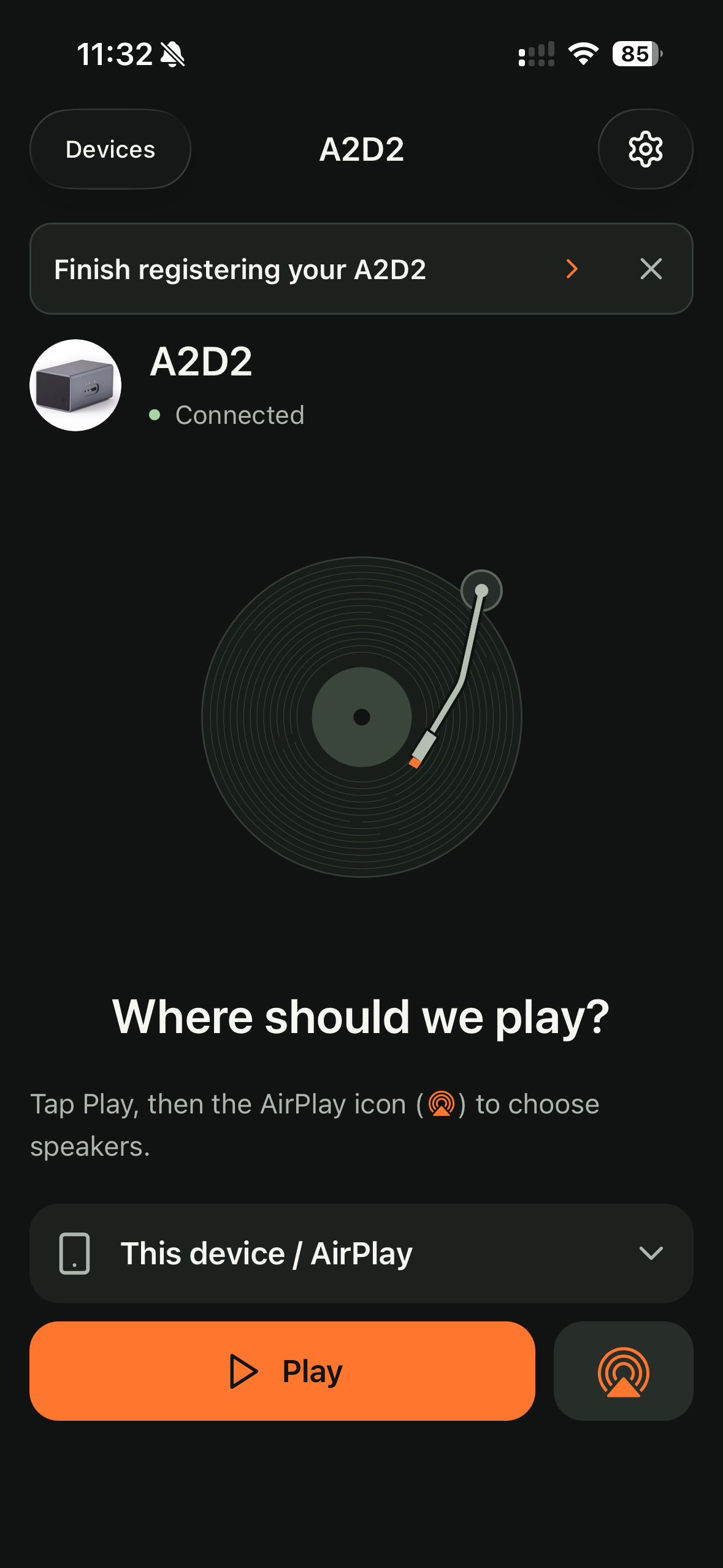
- Choose Play to → This device / AirPlay.
- Tap Play.
- Tap the AirPlay icon (
 ), then select one or more compatible AirPlay 2 speakers in Apple’s picker.
 - Use the picker to adjust speaker or group volume.
Your iPhone or iPad carries the audio in this mode. Keep it on the same local network and leave A2D2 running in the background.
Only one speaker can be selected?
Check you chose This device / AirPlay, not Direct AirPlay. In Settings → Audio, leave Play alongside other apps off for AirPlay 2 multi-room. Stop and restart playback after changing the preference, then reopen the picker. All speakers selected together must support AirPlay 2.
What about Android?
Android does not offer the iOS AirPlay 2 grouping flow. Direct AirPlay still works because A2D2 makes the connection. For grouped playback on Android, use a supported Sonos, Chromecast or HEOS group instead.
Receiver access
A receiver restricted to devices signed in to its Apple Account may reject Direct AirPlay. Check the receiver’s access settings and choose a setting suitable for your trusted home network; a PIN or password may still be required.
Still stuck? Contact support with your phone model, app version, A2D2 software version, router or speaker model, and the exact message you see. Never send your Wi-Fi password.
A PIN or password is rejected
Enter the code shown by the receiver, or its configured AirPlay password—not your Wi-Fi or Apple Account password. If the receiver’s access details have changed, use its remove/forget control in the Direct AirPlay list and confirm Forget. This removes the pairing and password saved on A2D2. Select the receiver again to authorise access. An Apple Account-only restriction may still prevent Direct AirPlay; check the receiver’s access policy rather than repeatedly retrying the same code.
Was this article helpful?
That’s Great!
Thank you for your feedback
Sorry! We couldn't be helpful
Thank you for your feedback
Feedback sent
We appreciate your effort and will try to fix the article