Choose a compatible Cast speaker or a speaker group from the A2D2 app.
Overview
Audio source → A2D2 → Speaker
- Set up your Cast speakers in Google Home and connect them to the same local network as A2D2 and your phone.
- Start your music source, then choose Play to → Chromecast in A2D2.
- Select a speaker or group. Playback starts when it connects.
- Use the playback and volume controls in A2D2. Stop casting before choosing a different destination.
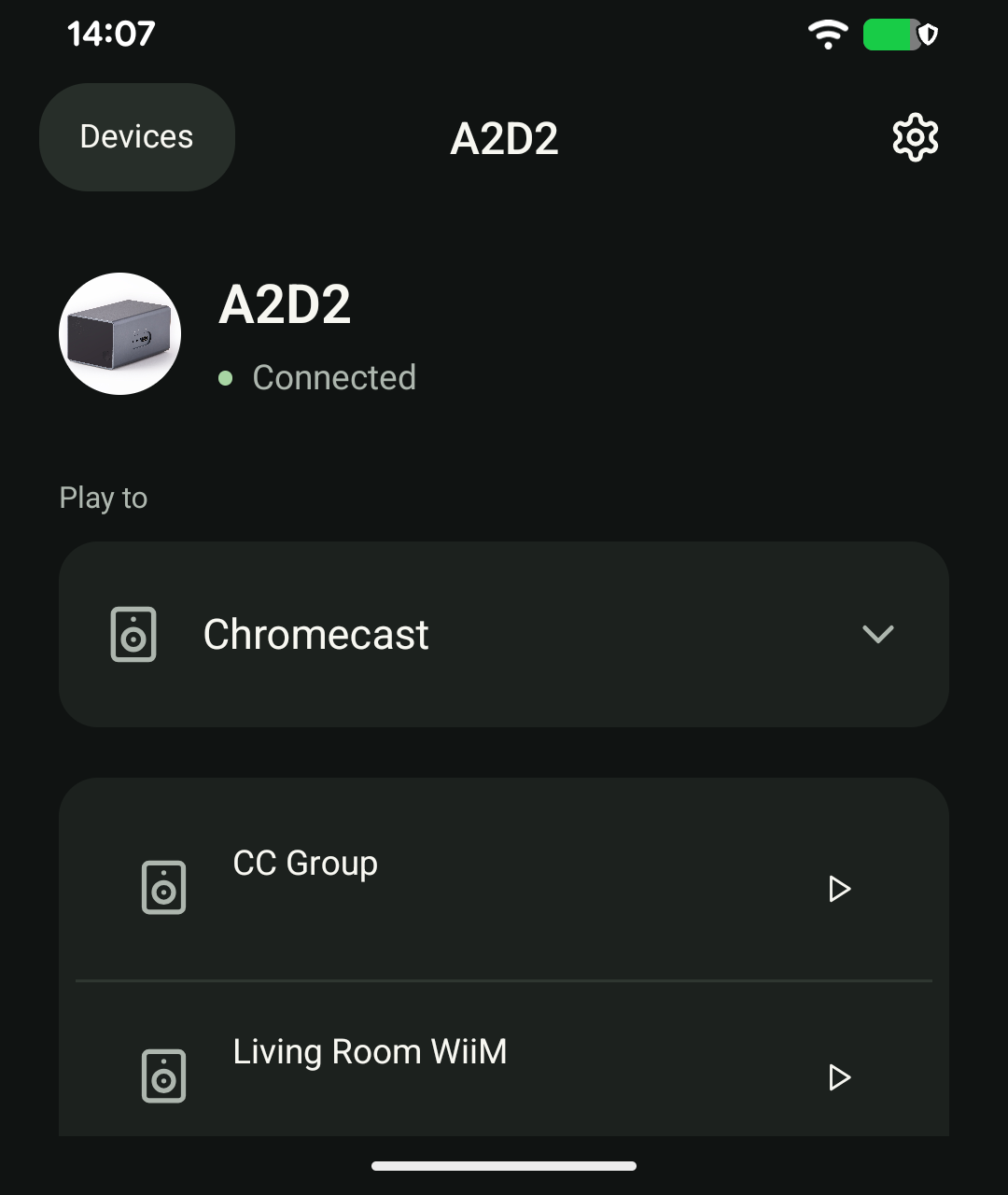
Play on several speakers
Create a compatible speaker group in Google Home first. Return to A2D2 and tap Refresh speakers, then select the group.
Nothing appears?
Check the speakers appear in Google Home and your phone has granted the local-network permissions requested by A2D2. Refresh the list. Guest networks and network isolation can prevent discovery even when every device has internet access.
Speakers buffer the stream, so a short delay at startup is normal. A Cast receiver’s maximum advertised audio quality does not necessarily describe the format of an A2D2 stream.
Still stuck? Contact support with your phone model, app version, A2D2 software version, router or speaker model, and the exact message you see. Never send your Wi-Fi password.
Bose speakers and soundbars
On a Bose model that supports Chromecast built-in, open its settings in the Bose app (previously Bose Music), select Chromecast built-in and enable it. Complete any Google terms prompt, then refresh speakers in A2D2. Bose Chromecast instructions.
Once playback starts on Chromecast, A2D2 sends audio to the receiver; the phone does not need to stay in the audio path.
Was this article helpful?
That’s Great!
Thank you for your feedback
Sorry! We couldn't be helpful
Thank you for your feedback
Feedback sent
We appreciate your effort and will try to fix the article