A factory reset clears saved settings, including Wi-Fi, so you can set up A2D2 again.
Overview
Check → Restart → Connect
This cannot be undone. Do not reset during a software update. If you are only troubleshooting discovery, try the connection checks first.
Reset from the app
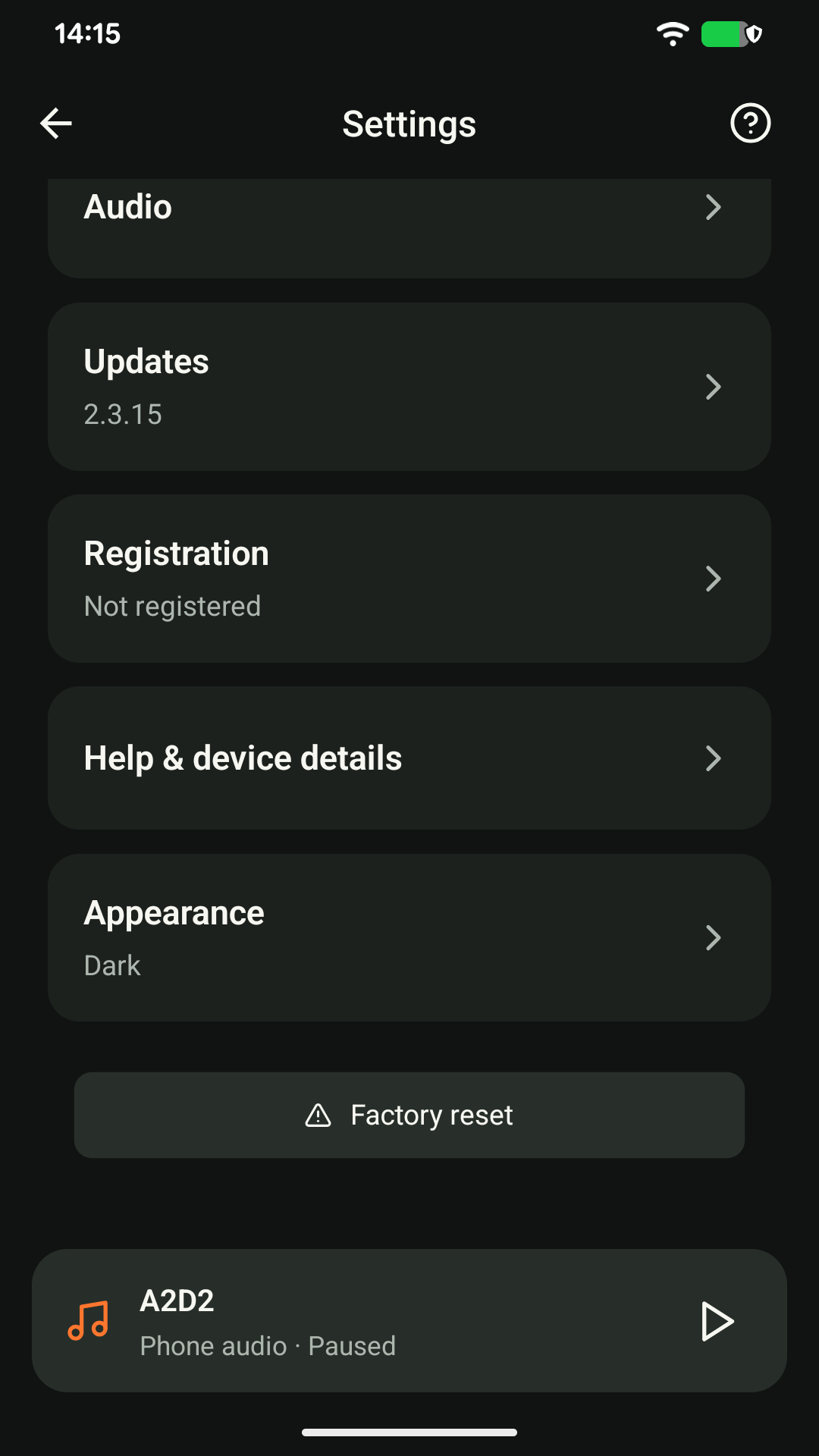
- Open your A2D2 and tap Settings.
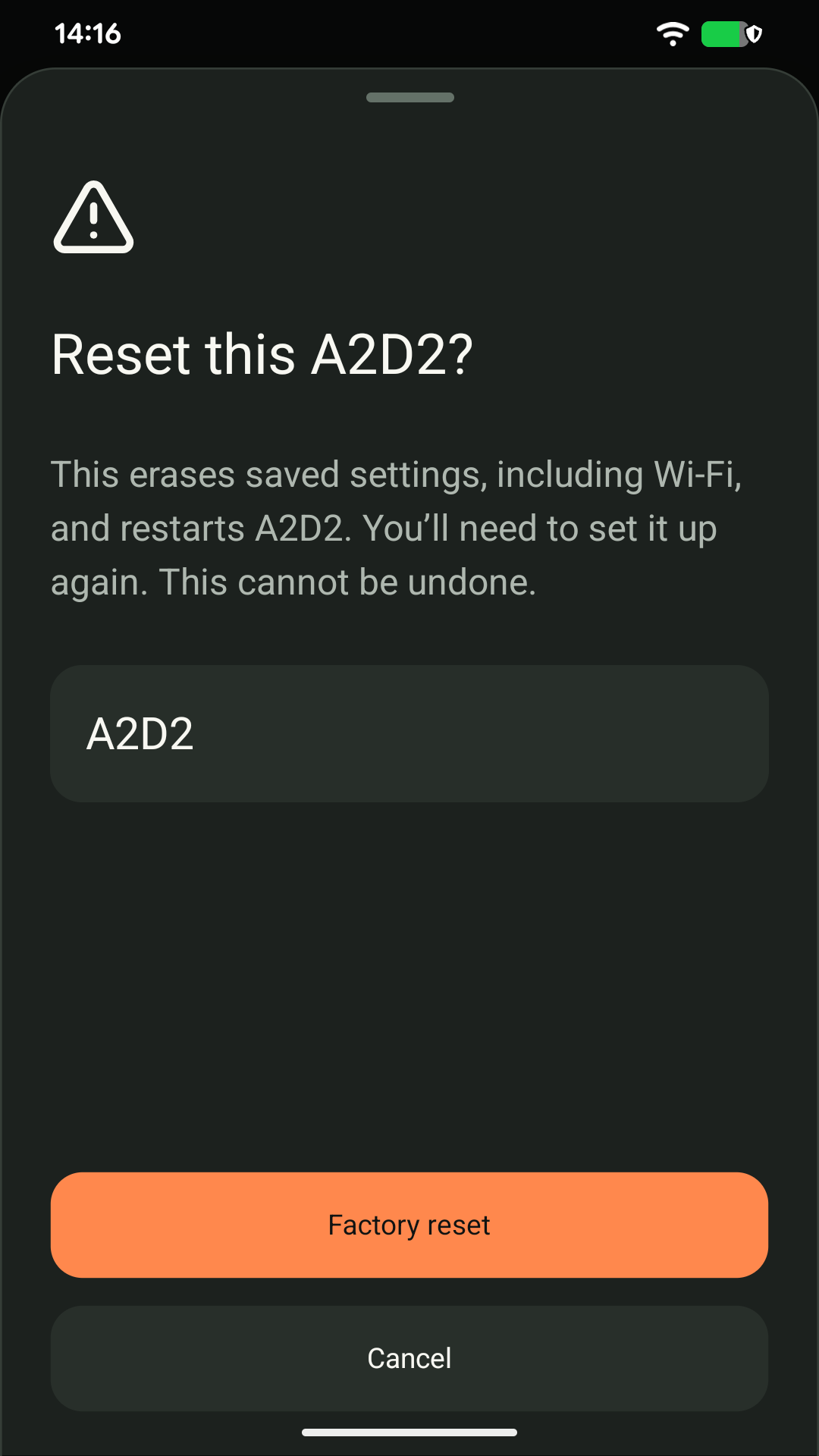
- Choose Factory reset, then confirm.
- The app returns to Devices and removes the old entry while A2D2 restarts.
- Wait for the setup prompt, then follow the setup guide to join your new network.
The setup prompt may not appear immediately after an app-initiated reset. Give the device time to restart.
Reset using the front button
With A2D2 powered on, hold the front button for about five seconds, then release it. Let A2D2 restart before setting it up again.
Do not keep holding the button. On newer firmware, a much longer hold has a separate recovery function.
Moving without resetting
If you connect by Ethernet, connect A2D2 to the new router and put your phone on that network. A factory reset is not normally needed just to change an Ethernet connection.
If you are transferring the device to a new owner, contact support about registration as well; a settings reset is not an ownership-transfer process.
What is reset?
The current firmware restores default device and discovery settings and removes the saved Wi-Fi country. This is not a Wi-Fi-only reset. It does not install a new firmware version. Recheck your name and preferences after setup; do not assume every previous setting remains.
Was this article helpful?
That’s Great!
Thank you for your feedback
Sorry! We couldn't be helpful
Thank you for your feedback
Feedback sent
We appreciate your effort and will try to fix the article