A2D2, your phone and your speakers need to be able to communicate locally—not just reach the internet.
Overview
A2D2 → Home network → Phone
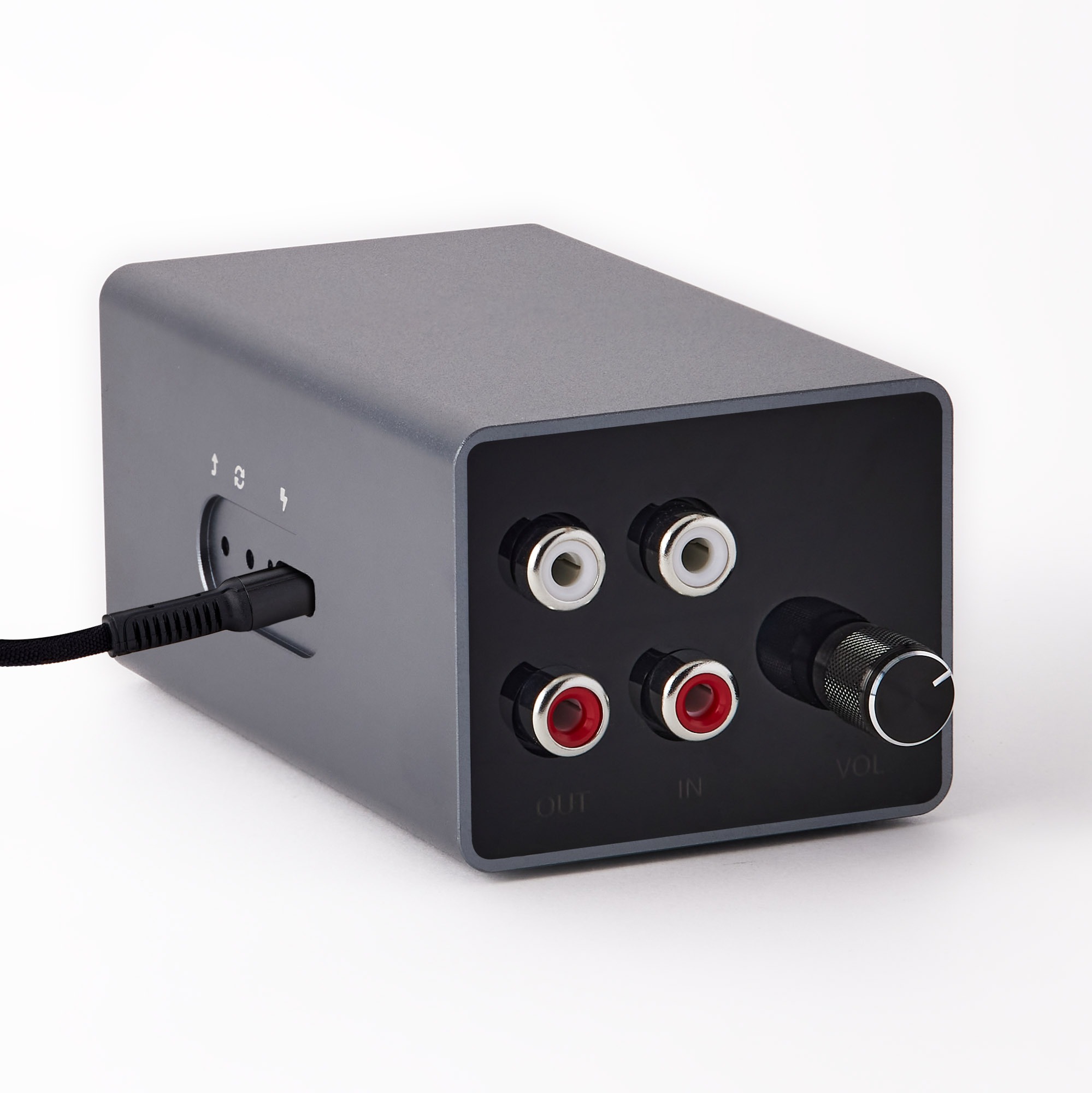
A2D2 cannot join Wi-Fi
Check the password and that the network offers 2.4 GHz. Keep A2D2 near an access point for setup and install supported app and firmware updates. If it still fails, give support the router model, security mode and A2D2 version.
A2D2 joins but the app cannot find or open it
Confirm the router currently lists A2D2 as connected. Keep your phone off guest Wi-Fi and check network isolation or blocked-device settings.
As a test, use the phone near the access point serving A2D2. If that works but another location does not, tell support which mesh nodes are involved. Discovery traffic and direct device traffic can be treated differently across a mesh.
Try Ethernet as a diagnostic
If practical, connect A2D2 to the main router and keep the phone on its local network. Connecting to a satellite may still send traffic across the same mesh backhaul.
There is no need to factory-reset or reflash as a first troubleshooting step. Do not disable your router’s security globally just to test a connection; support can help narrow down the cause.
Still stuck? Contact support with your phone model, app version, A2D2 software version, router or speaker model, and the exact message you see. Never send your Wi-Fi password.
Changing router settings
Do not assume every mesh requires weaker security. Check the exact router model and firmware with support. If a compatibility test is needed, change one setting at a time, record the original value and restore it afterwards. A separate WPA2 test network must still allow your phone and speakers to communicate with A2D2; a guest network may not. Do not disable PMF, roaming, beamforming and every security feature together.
Router-specific checks
Install the offered A2D2 update first. If joining Wi-Fi still fails, these checks can help identify a compatibility setting. Menu names vary by router version.
- eero: In the eero app’s Encryption settings, test Standard (WPA2) for 2.4 GHz. Restore the original setting if it makes no difference. eero
- Google Nest Wifi / Google Wifi: In Google Home → Wi-Fi → Settings, check WPA3. If enabled, test with it off. Changing it restarts the network. Google Nest Wifi / Google Wifi
- TP-Link Deco: More → IoT Network can provide 2.4 GHz with WPA2. Keep A2D2 outside Device Isolation so the phone and speakers can reach it. TP-Link Deco
- TP-Link Archer, ASUS / ZenWiFi, Netgear Orbi, UniFi: Check for a 2.4 GHz WPA2 test network that allows local communication. Ask support about your exact model before changing roaming, band steering or management-frame settings.
- Sky, BT, Virgin Media and other ISP routers: Check the hub model and available security options. If the required Wi-Fi test is unavailable, compare Ethernet to a LAN port on the main router.
To test node handover, temporarily turn off satellite nodes and run setup near the main router. Restore the satellites afterwards. Ethernet to the nearest node can improve the local link, but still depends on that node’s connection to the main router.
Was this article helpful?
That’s Great!
Thank you for your feedback
Sorry! We couldn't be helpful
Thank you for your feedback
Feedback sent
We appreciate your effort and will try to fix the article