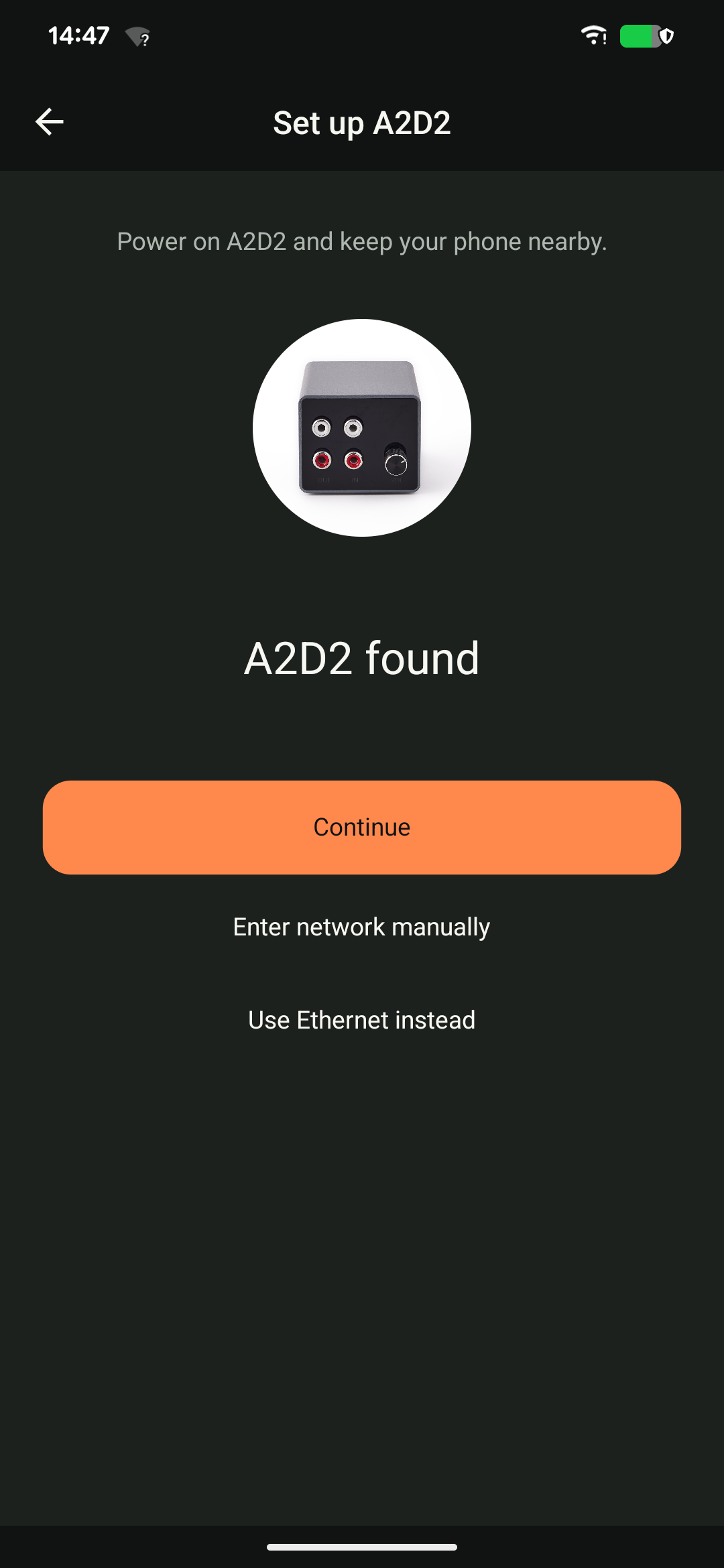
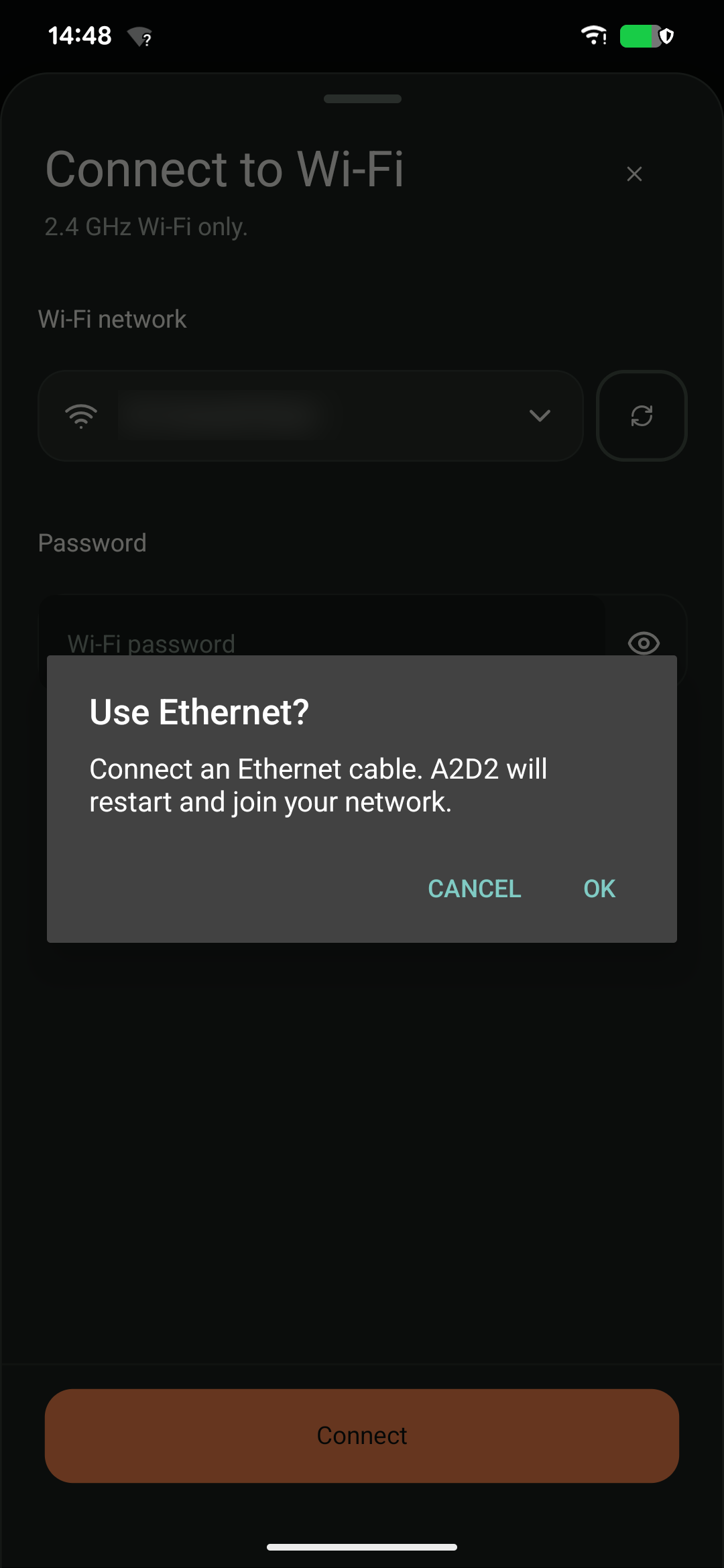
You can use a wired network connection instead of Wi-Fi.
- Connect A2D2’s Ethernet socket to a LAN port on your router, and power A2D2 through USB-C.
- Keep your phone on that router’s home Wi-Fi, not its guest network.
- Open the app. If A2D2 is ready, select it. If it needs setup, follow the setup prompt and choose the wired-connection option when offered.
- Allow the transition to finish, then open A2D2 and choose your output.
Ethernet can remain connected permanently. For diagnosis, the main router is more useful than a mesh satellite: a cable to a satellite still uses the mesh backhaul. Using Ethernet temporarily does not guarantee Wi-Fi will reconnect when you unplug it; check the saved network and setup state first.
Was this article helpful?
That’s Great!
Thank you for your feedback
Sorry! We couldn't be helpful
Thank you for your feedback
Feedback sent
We appreciate your effort and will try to fix the article