Update the A2D2 app through your app store, and update the Stream’s firmware from the app.
Overview
Check → Update → Restart
Update the app
Open the App Store or Google Play and check for an A2D2 update. The app and your Stream have separate version numbers.
Update your Stream
- Open the device in A2D2 and tap Settings → Updates.
- Check the installed and latest available software versions. Tap Refresh if needed.
- If an update is offered, tap Update firmware.
- Keep A2D2 powered on, your phone on the same network and the app open while the update runs.
- Wait for A2D2 to restart and reappear. Check its software version afterwards.
Do not disconnect power during installation. Stop playback before you begin.
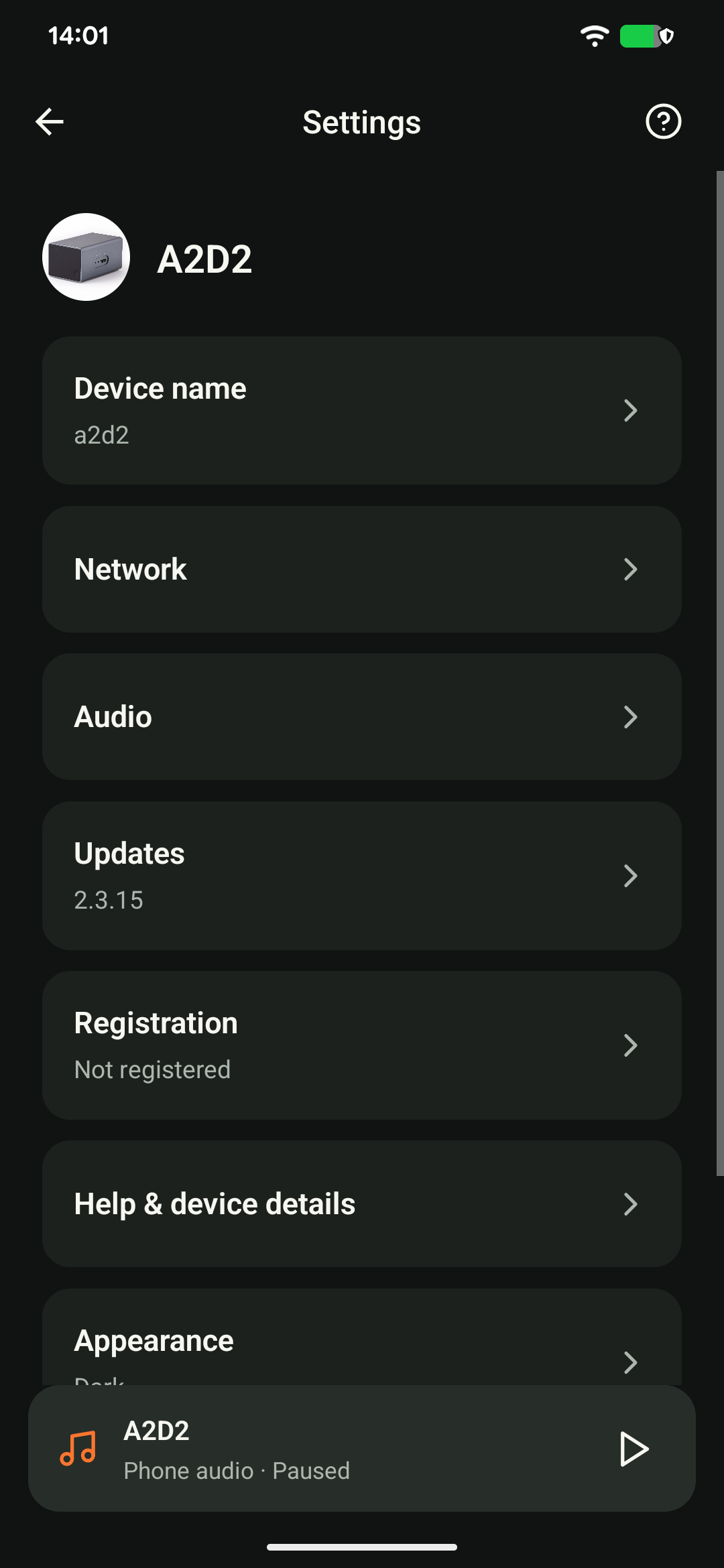
Update notifications
An Update available notice may appear on the device screen. Tap it to open Updates. Dismissing the notice does not install the update or stop you checking manually later.
If an update fails
Note the error and whether it happened during download, upload, installation or restart. Check your phone’s free storage and network connection. Do not reset or reflash the unit while it may still be installing; contact support if you are unsure.
Only use firmware supplied through A2D2’s update service or directly by A2D2 support. Do not install a test image or an older download to troubleshoot without guidance.
Still stuck? Contact support with your phone model, app version, A2D2 software version, router or speaker model, and the exact message you see. Never send your Wi-Fi password.
Update through a wired connection
Download the standard firmware file from https://updates.a2d2.net/a2d2.swu. A2D2 support may send you a separate link to a beta version. Only use a beta when support has provided it for your device, and follow the instructions supplied with that link.
- Connect A2D2 by Ethernet to the main router, with stable USB-C power. Keep the computer on that local network.
- Use the official A2D2 software download, or the specific image support supplied for your unit.
- Open
http://a2d2.local:8080. If the hostname fails or the device was renamed, use its current IP followed by:8080. - Upload the SWU file using the page’s upload control. Keep A2D2 powered and wait for the update page to report completion and the device to restart.
- Check the installed version in the app before disconnecting Ethernet. Do not interrupt an update or treat an LED alone as confirmation.
If the page reports an error, save the exact message and contact support before repeating the update or trying recovery. Returning to Wi-Fi depends on the saved network configuration, so do not assume unplugging Ethernet completes setup.
Finding the downloaded file
The firmware link downloads a2d2.swu directly. On Mac, look in Finder → Downloads; on Windows, use File Explorer → Downloads. On the local update page, select that file or drag it into the upload area if offered. Audio cables are not required. Keep the browser open and do not unplug power while the update runs.
If you normally use Wi-Fi, check its saved connection before removing Ethernet. If A2D2 then asks for setup, return to the app’s setup flow. Check the installed version after reconnecting.
Was this article helpful?
That’s Great!
Thank you for your feedback
Sorry! We couldn't be helpful
Thank you for your feedback
Feedback sent
We appreciate your effort and will try to fix the article