Check the power supply and cable before resetting or reinstalling software.
- Use the USB-C power input, not the larger USB-A socket. Check both ends of the cable and the wall socket.
- Try a known-good regulated 5 V USB supply rated for at least 1.5 A and a suitable cable. A 5 V supply rated for 2 A or more gives additional current capacity. A light turning on does not prove the supply remains stable during startup.
- If safe to do so and no update is running, try one normal power restart. Do not open the enclosure or force a stuck button.
If there are still no lights or the startup sequence repeats, contact support with your order number, charger rating and a short video. Lights alone do not establish the cause or whether a replacement is needed.
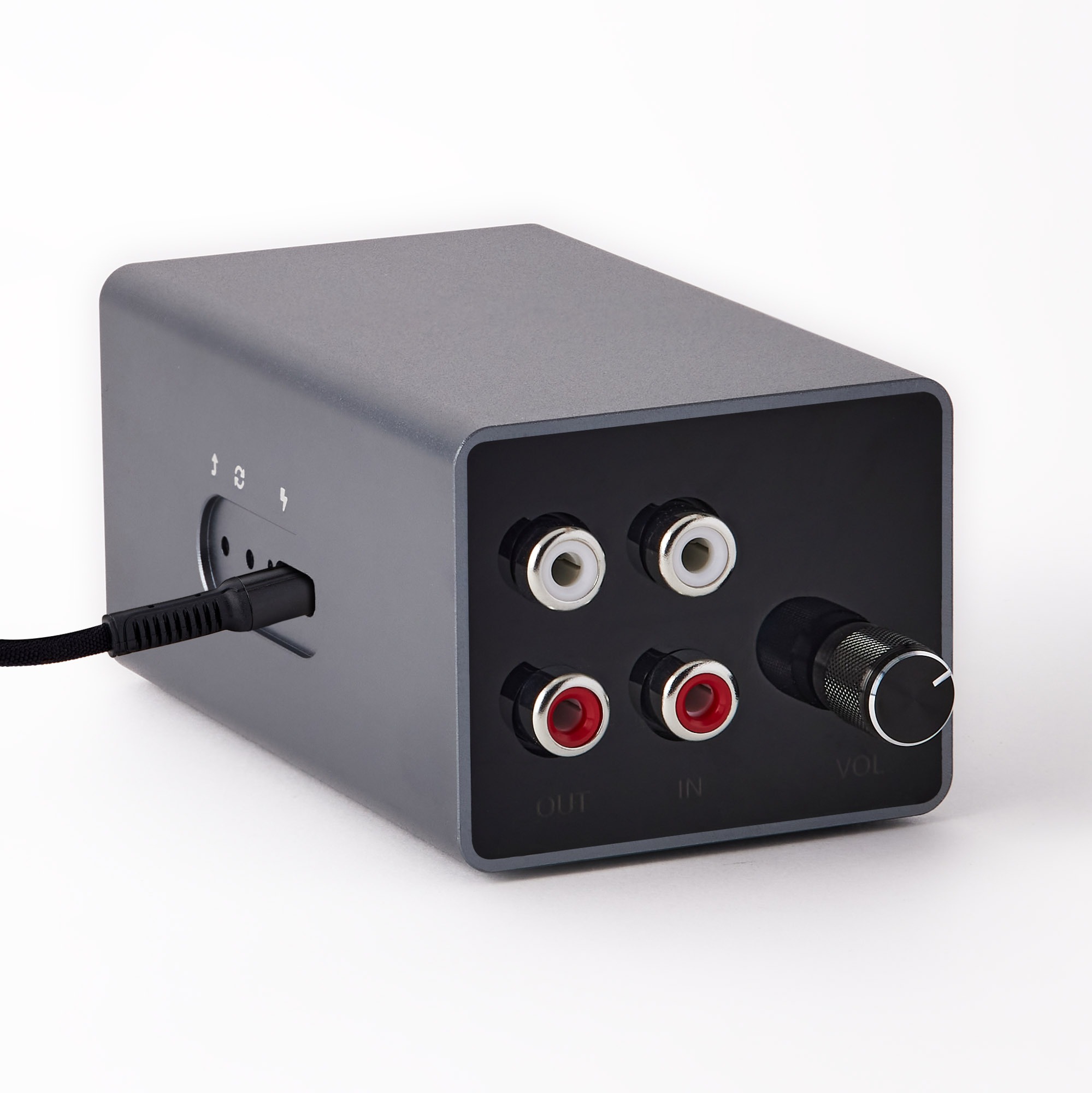
If the startup keeps repeating
A green light that settles briefly and then flashes again can indicate repeated restarts. Test a different wall charger and USB cable. Check the front button moves and releases normally; press and release it gently a few times without holding it. Do not force it. If no update is running, leave power disconnected for a minute before trying again.
Was this article helpful?
That’s Great!
Thank you for your feedback
Sorry! We couldn't be helpful
Thank you for your feedback
Feedback sent
We appreciate your effort and will try to fix the article