Each unit has its own source, settings and network identity.
- Set up each A2D2 on your network.
- Give each one a recognisable name in Settings so you can tell them apart.
- Use Devices to choose the source you want, then select its output under Play to.
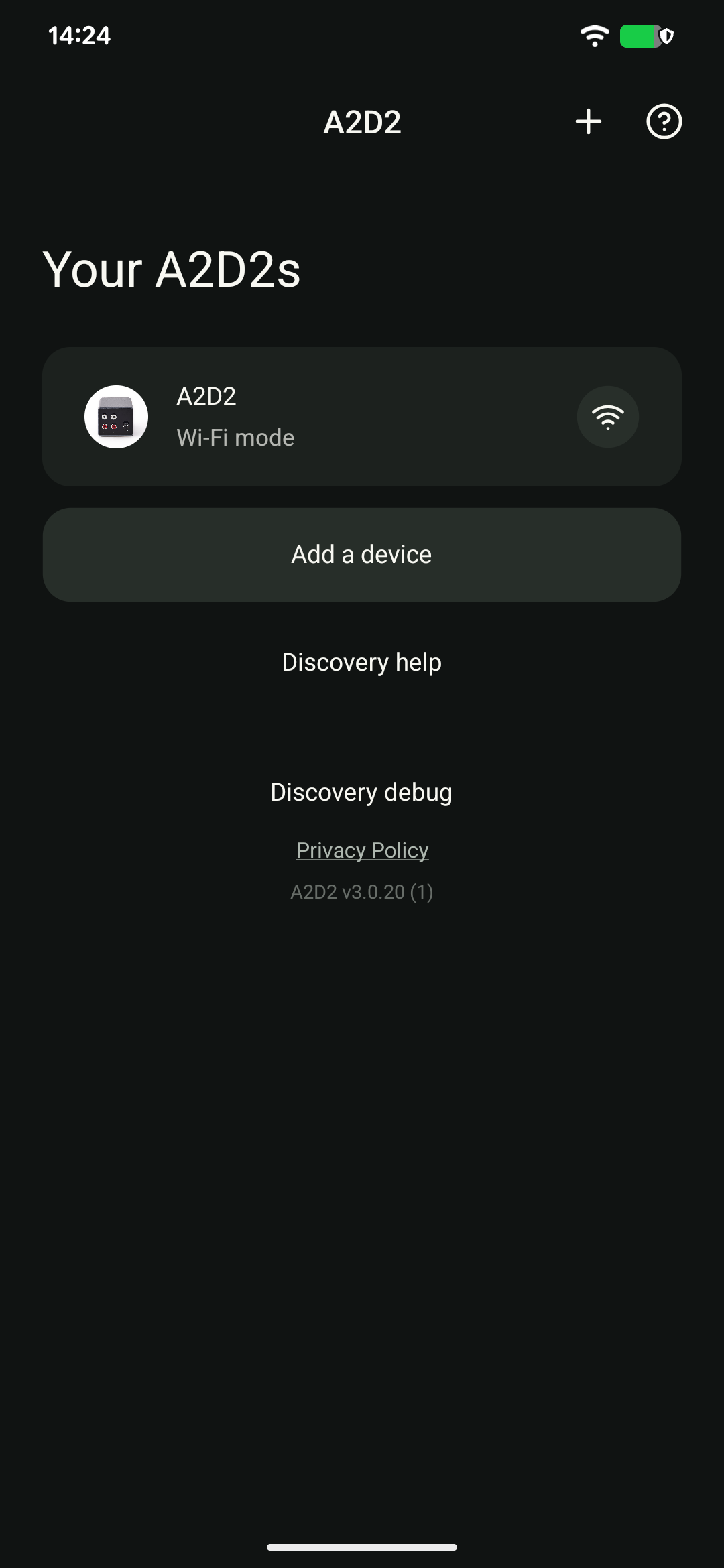
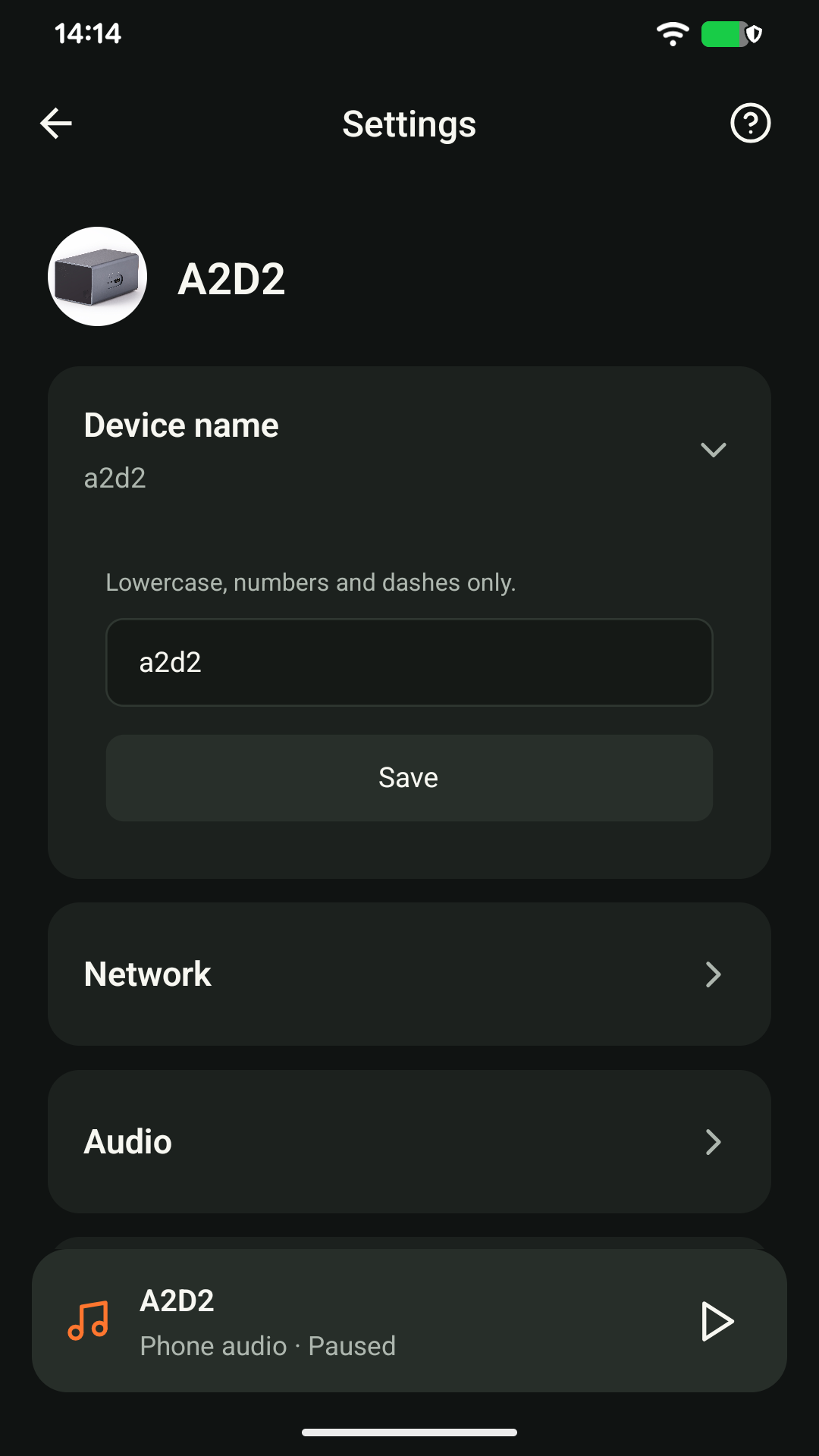
The app may open a ready or remembered device automatically. Devices lets you change it. Two A2D2 units do not automatically mix their audio or create a synchronised group. Use separate compatible destinations for independent listening, and avoid sending competing sessions to the same receiver.
Was this article helpful?
That’s Great!
Thank you for your feedback
Sorry! We couldn't be helpful
Thank you for your feedback
Feedback sent
We appreciate your effort and will try to fix the article